
Uninstalling the Email Signature Manager Agent programmatically
Problem
You wish to uninstall the Email Signature Manager Agent programmatically from a number of machines on your network.
Solution
There are a number of methods to remove the Agent installation from your network. This can be done using a Powershell script for Clickonce or MSI installed Agents or an MSI uninstallation for MSI installed Agents.
In some cases when installed via MSI, the Powershell script is known to be unable to remove the Agent installation. In this case, we recommend using the MSI uninstallation script.
Powershell
The following powershell script will in most cases remove both the ClickOnce and MSI installed Agent from your devices.
The .ps1 script below should be saved to your local machine. In order to run a saved script you will need to allow unsigned scripts to run. This can be done using the following command through an Administrative Powershell window.
MSI uninstallation
Owing to the nature of MSI installation, you must find the correct Local Package for the installed software. This can be done using Powershell commands and the resulting information used with an RMM package or GPO to remove the software from your computers.
Open a PowerShell window on a device with the Agent installed, and run the following command.
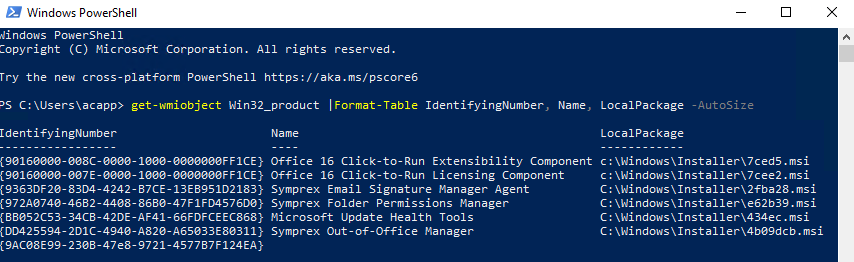
Using the LocalPackage field, you can use the following command to uninstall the agent. The user running the command will require write permissions to %temp%.
This command can be used with a boot/login script or RMM solution to remove the Agent as desired from your network.
OWA signatures are not updating in Office 365
Fix Microsoft 365 OWA signature updates blocked by roaming signatures and review Signature 365 migration guidance.
User is not receiving signature and is not visible in Email Signature Manager
Fix users missing from deployment by completing required Active Directory logon name and email fields.