
How to enable debug log in Outlook add-in
Enable or disable Outlook add-in debug logging in Windows by creating the required Office registry keys.
You may be asked by technical support to enable debug logging in the Signature 365 add-in for Outlook on Windows.
How to enable debug logging
Follow the steps below to enable debug logging:
- Open the Windows Registry Editor
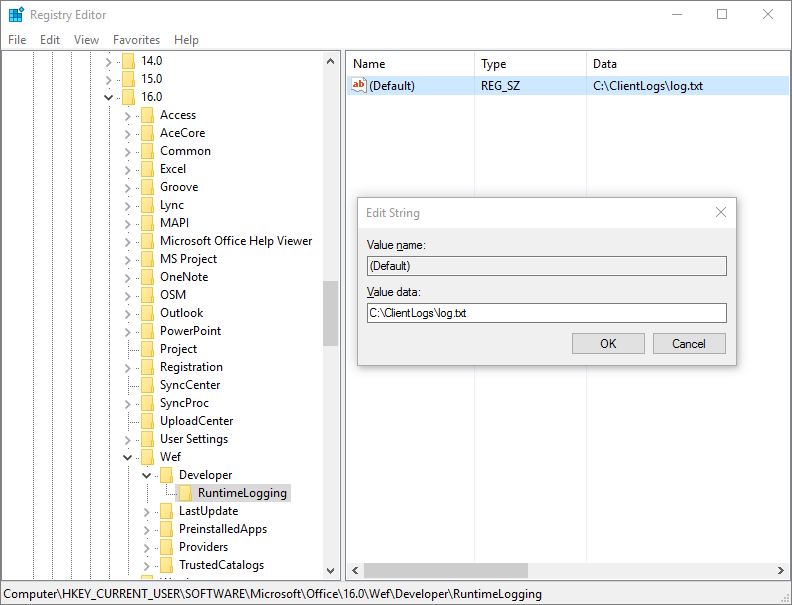
- Add a RuntimeLogging registry key under the following registry key:
HKEY_CURRENT_USER\SOFTWARE\Microsoft\Office\16.0\WEF\Developer\ NoteIf the Developer key does not already exist under HKEY_CURRENT_USER\SOFTWARE\Microsoft\Office\16.0\WEF\, complete the following steps to create it. a. Right-click the WEF key and select New > Key b. Name the new key Developer
- Set the default value of the RuntimeLogging key to the full path of the file where you want the log to be written. NoteThe directory in which the log file will be written must already exist, and you must have write permissions to it.
The following image shows what the registry should look like.
How to disable debug logging
To turn the feature off, remove the RuntimeLogging key from the registry.
How Outlook client-side signatures work
Learn how Signature 365 client-side signatures are enabled and inserted in Outlook when the add-in is installed.
How to install the Outlook add-in
Deploy the Signature 365 Outlook add-in from Microsoft 365 or supported Outlook clients so users can preview and insert signatures.