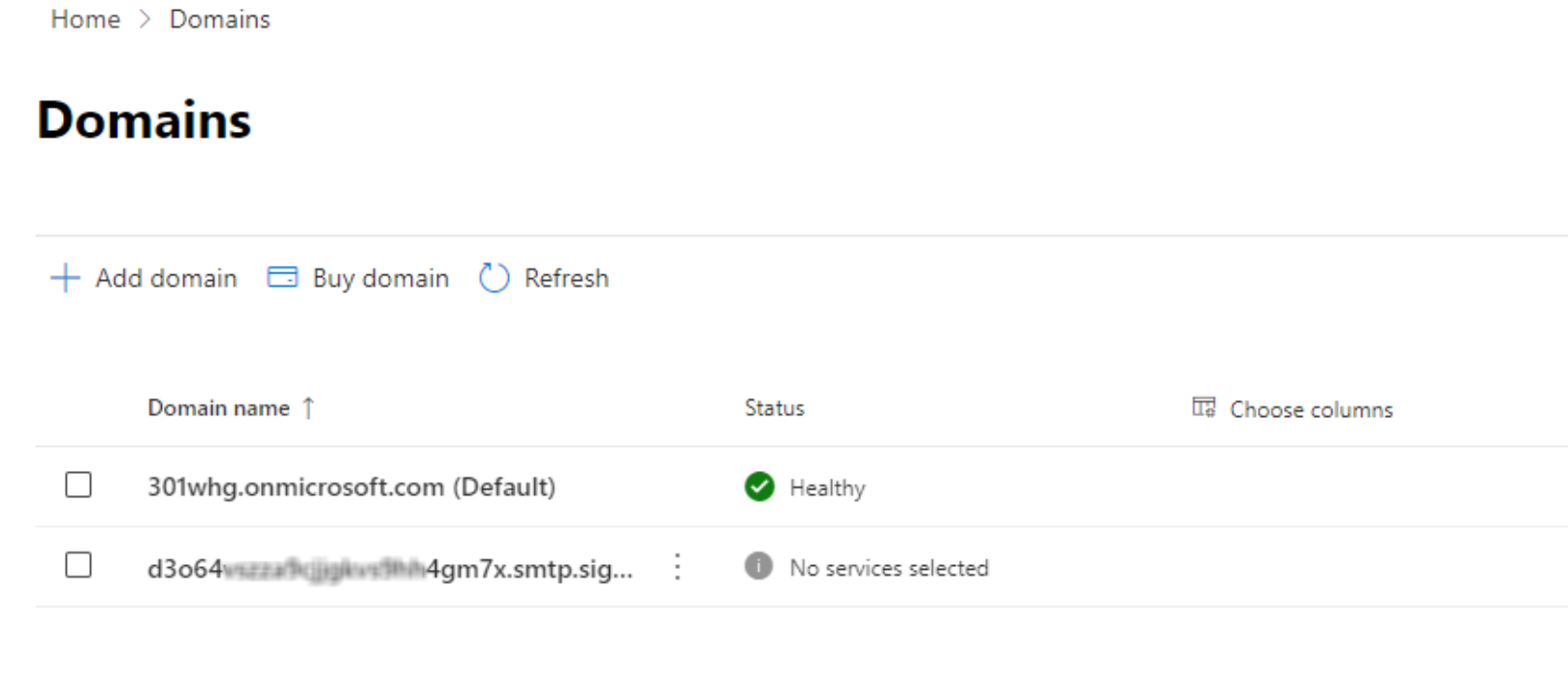
Signature 365 domain shows as "Incomplete setup" within Microsoft 365 Admin center
If you have enabled server-side signatures for Microsoft 365, you may notice a domain ending smtp.signature365.net with a status of Incomplete setup under Domains in the Microsoft 365 Admin center.
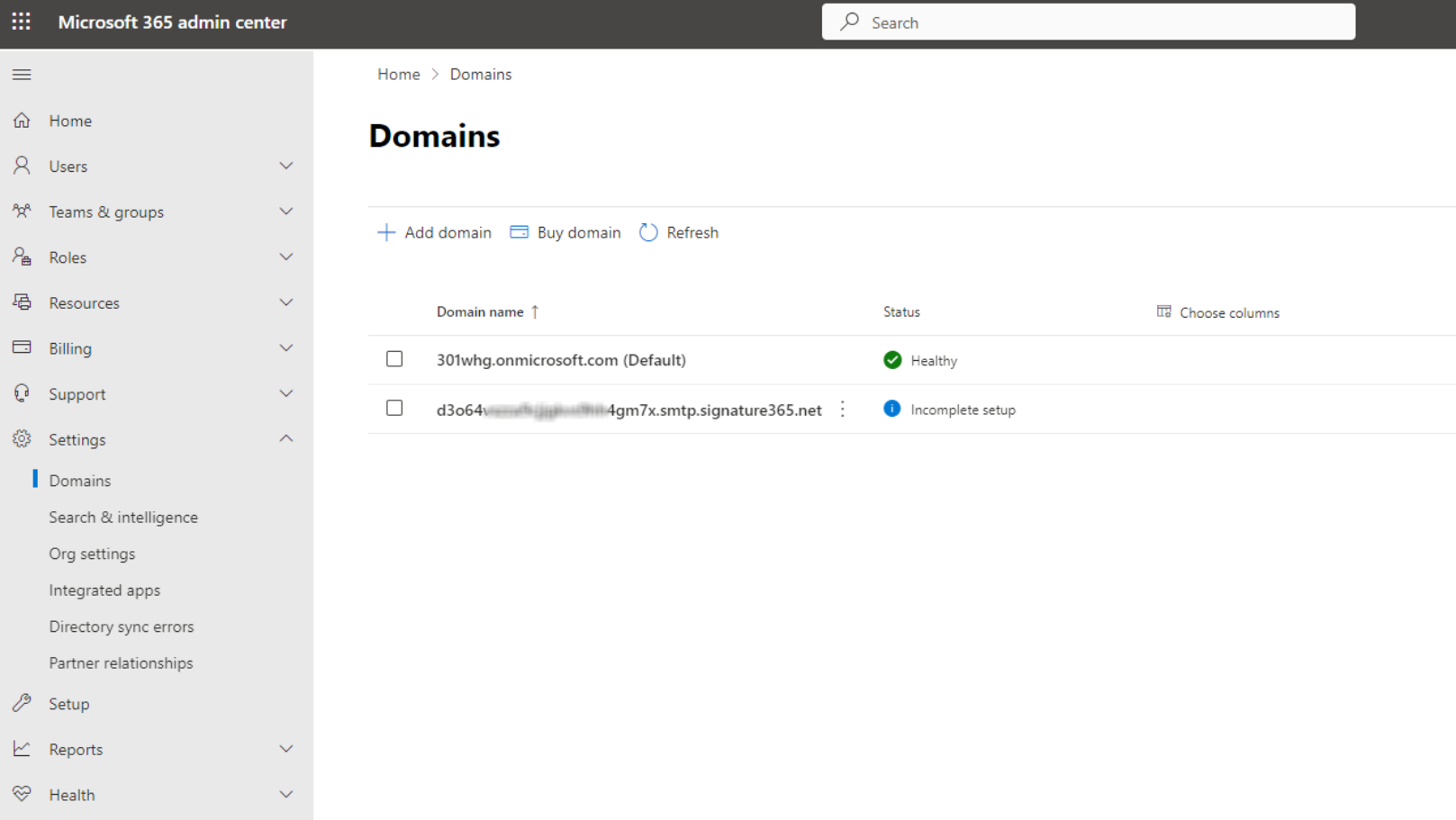
This happens because Signature 365 adds a domain ending smtp.signature365.net to your Microsoft 365 tenant when you enable server-side signatures. This domain is specific to your tenant and is used in conjunction with a TLS certificate to securely relay email between Microsoft 365 and Signature 365 via the inbound and outbound connectors.
When a domain is added to Microsoft 365, you would typically configure various DNS records, but no DNS records are required for the Signature 365 domain. You can safely ignore the Incomplete setup warning for the Signature 365 domain.
If you prefer, you can update the Signature 365 domain to display as No services selected by following the steps below:
- Login to Microsoft 365 Admin center
- Go to Settings > Domains
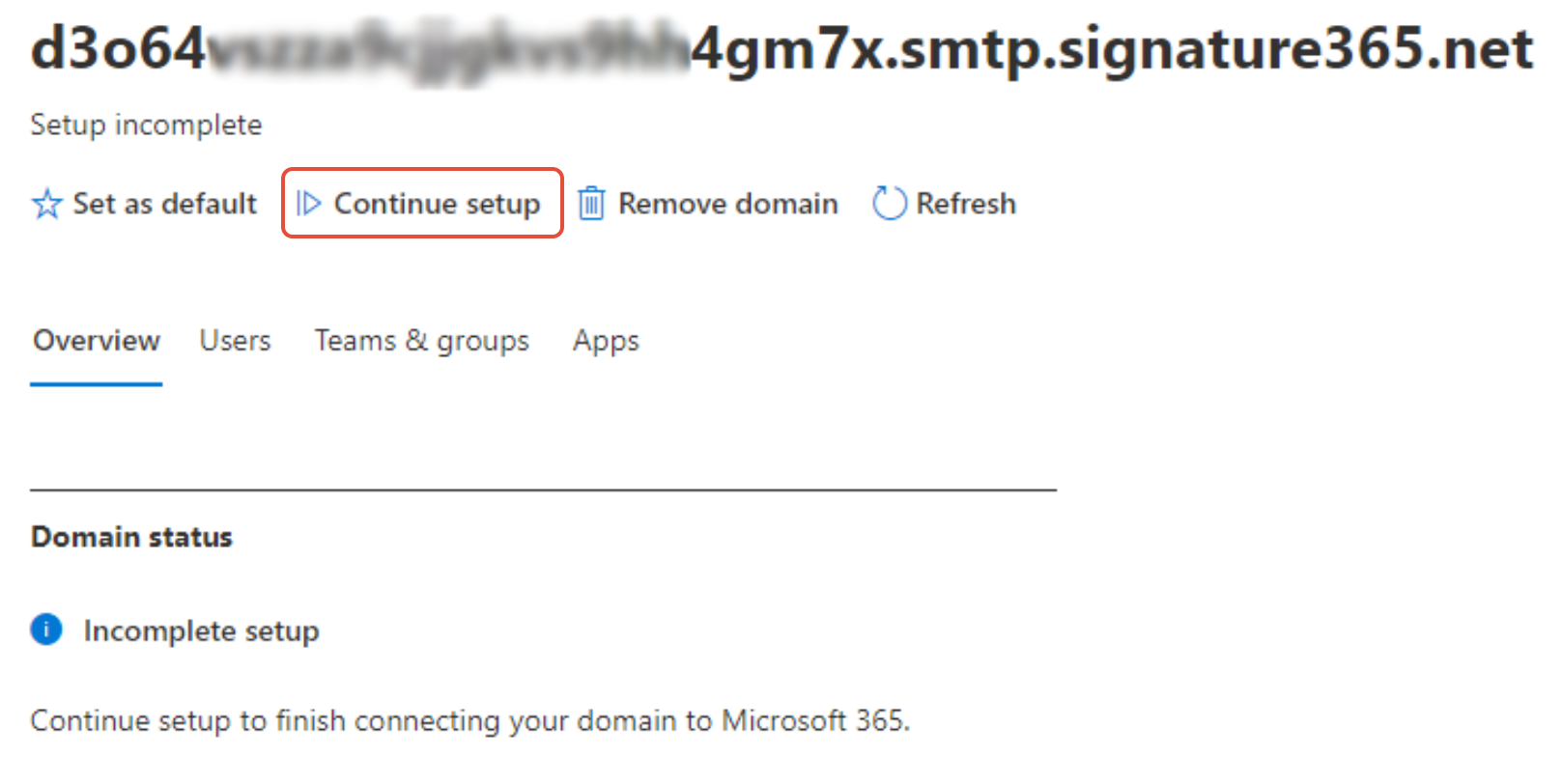
- Click the Signature 365 domain in the domain list
- On the domain information page click Continue setup
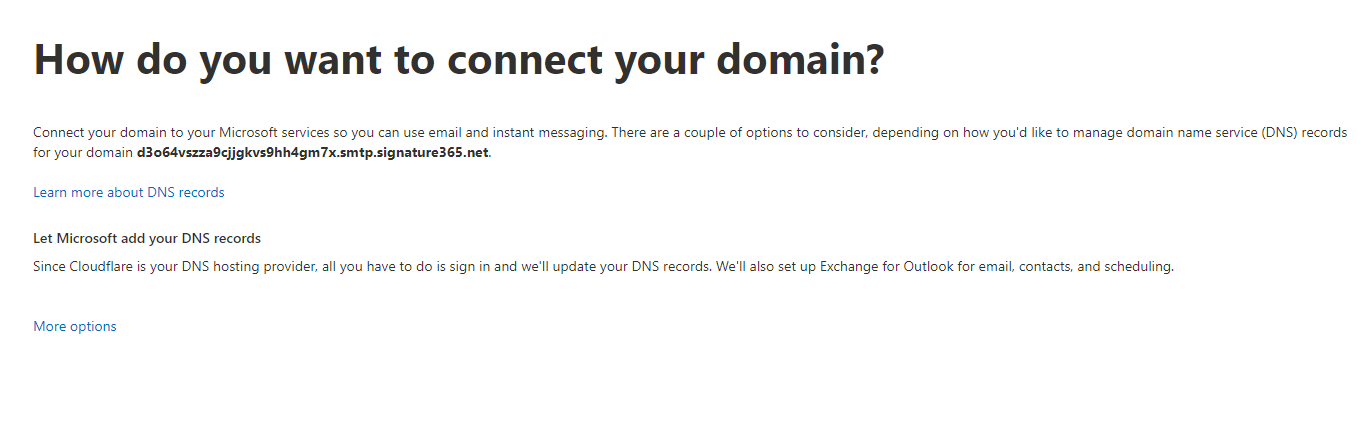
- On the How do you want to connect your domain? page click the More options link
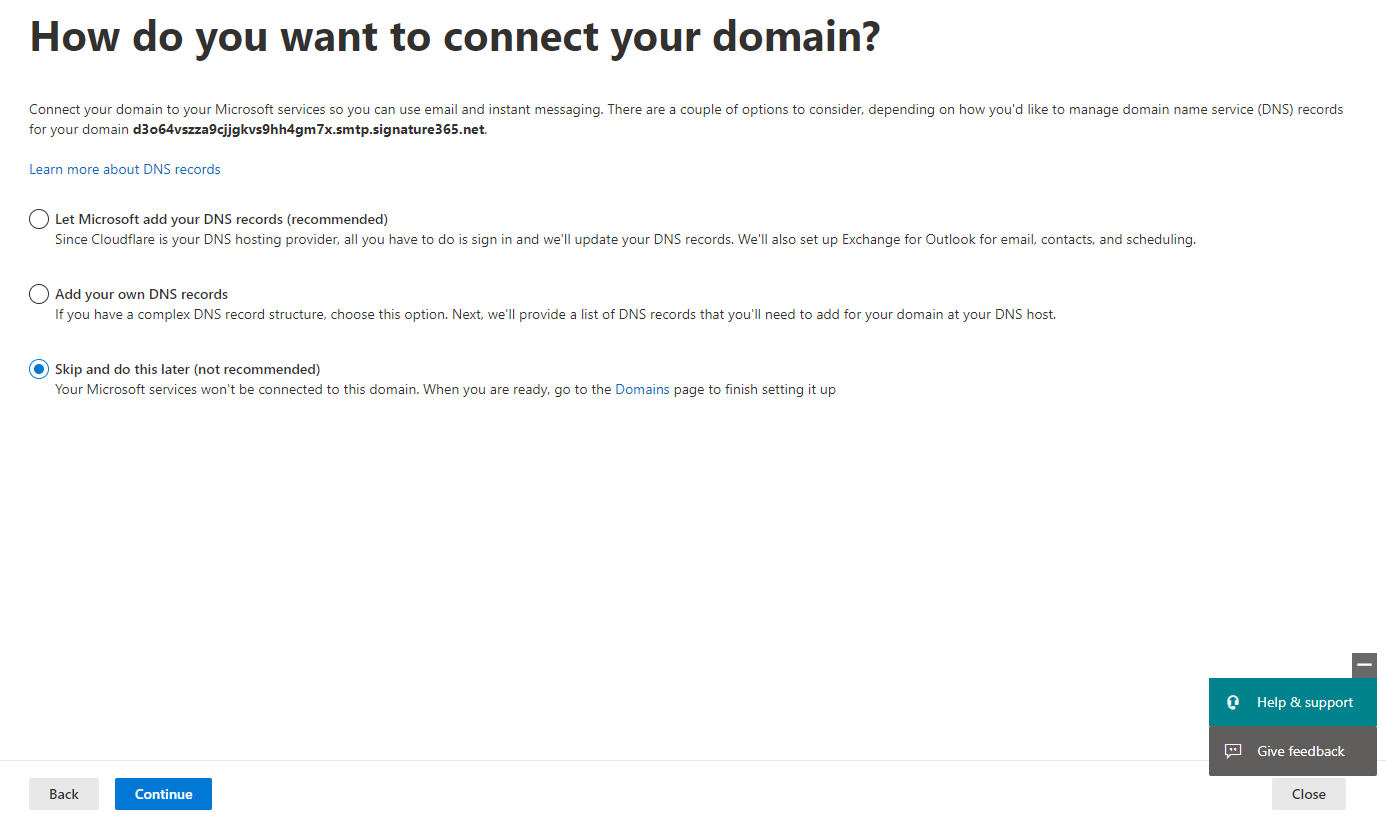
- Select the option Skip and do this later (not recommended), and click the Continue button
- On the Domain setup complete page, click the Done button
- Go to Settings > Domains and you will see the Signature 365 domain showing as No services selected