Using two-factor authentication with a Signature 365 admin account
Scenario
You wish to enable two-factor authentication on your administrator or editor accounts for Signature 365.
End users must enable this themselves. You cannot currently enable this centrally.
Solution
2FA in Signature 365 can be enabled in 2 ways; Using SSO with your Microsoft 365 account if you have MFA enabled, or by using 2FA within Signature 365
Microsoft 365 SSO
Follow Enabling single sign-on (SSO) for Signature 365 management accounts to enable this.
2FA within Signature 365
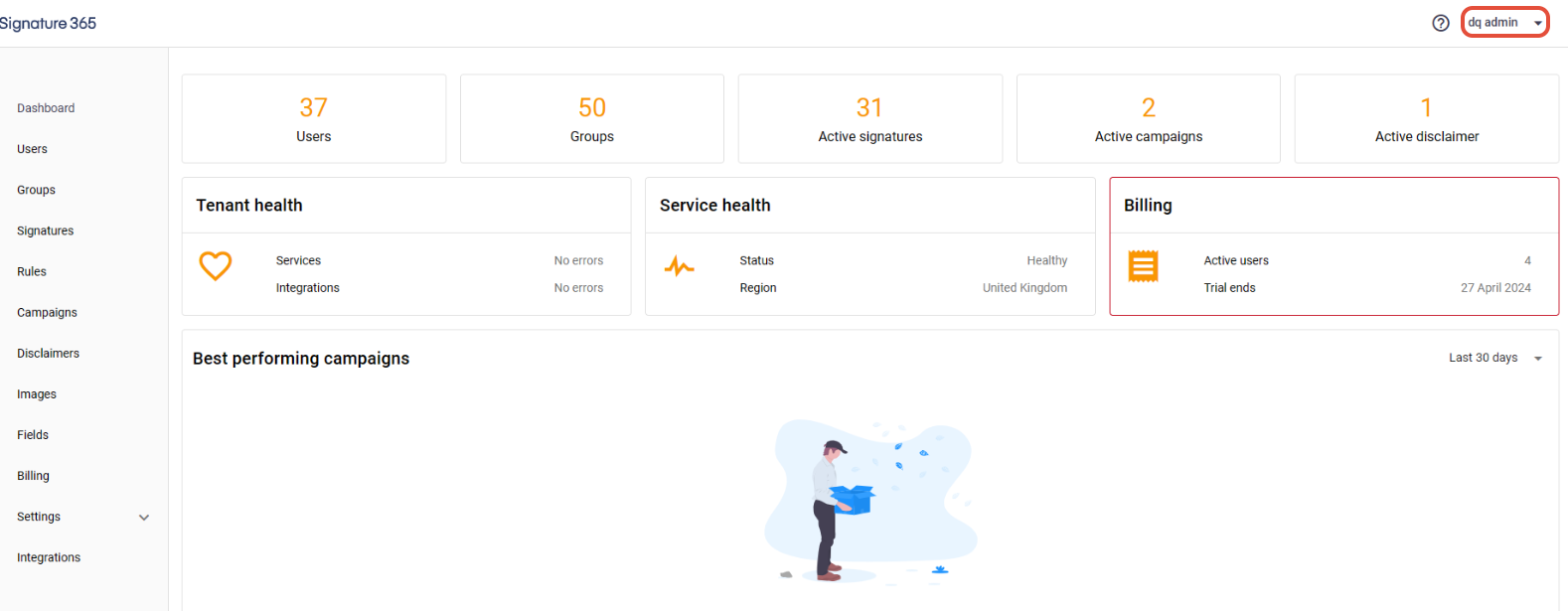
Logon to the Signature 365 portal
Select the user dropdown from the top right of the page
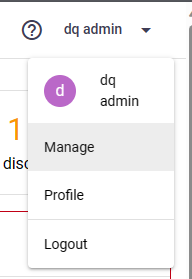
Select the Manage option from the dropdown
Select the Two-factor authentication option from the menu and complete the steps to add your 2FA device
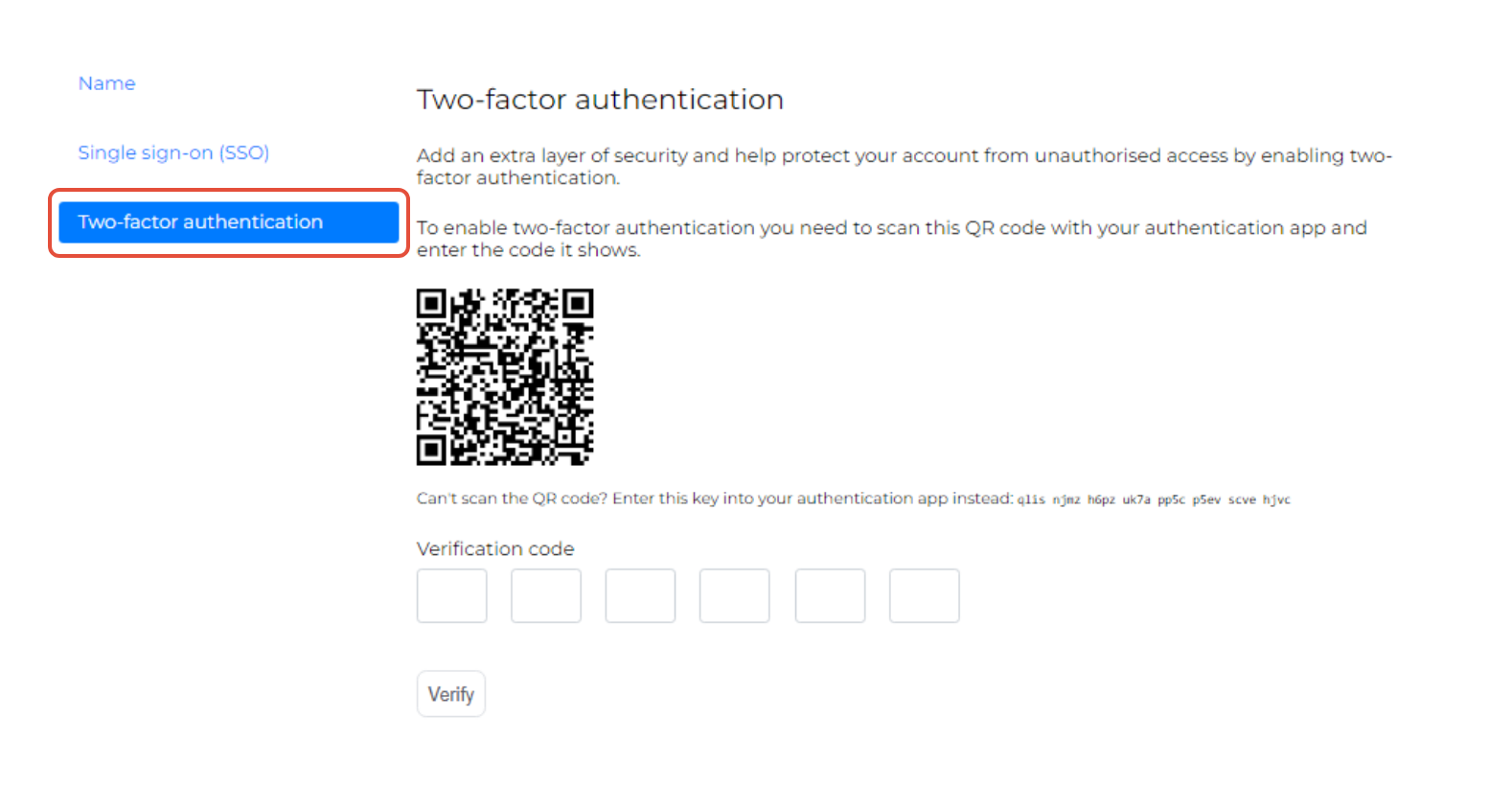
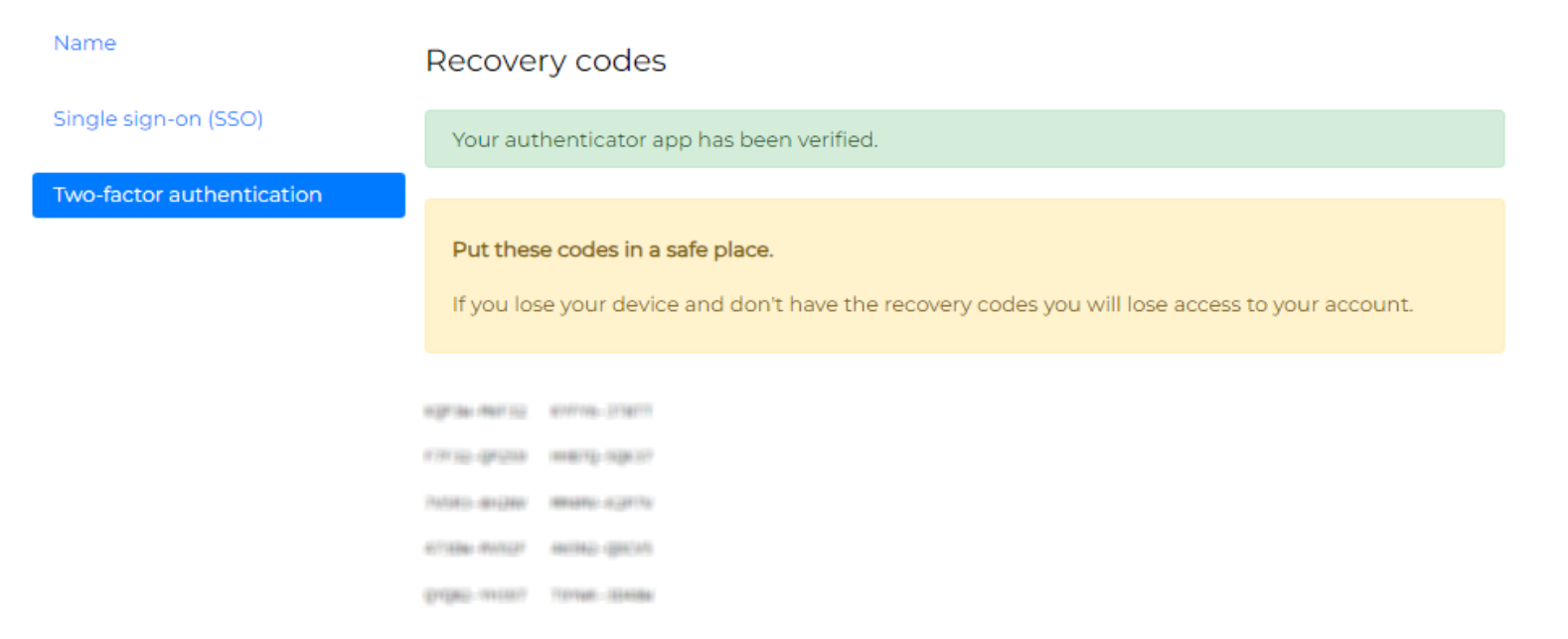
Once completed, your recovery codes will be displayed. Keep them safe. We cannot generate them for a lost two-factor device.
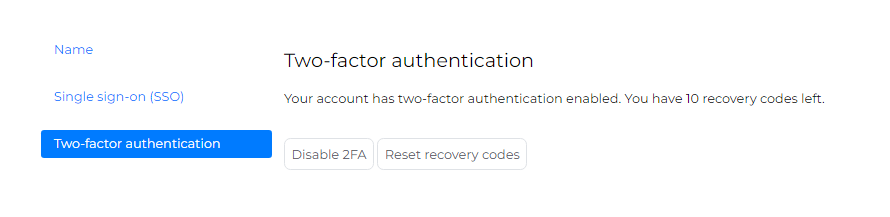
Click the Two-factor authentication option to check this is enabled. 2FA can be disabled from this option if required
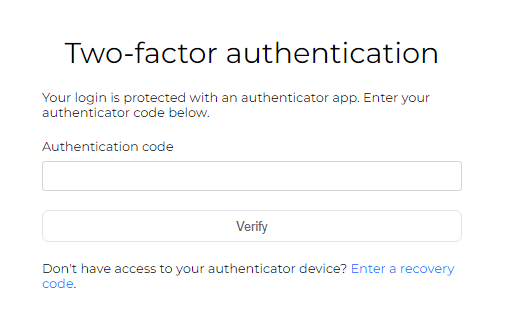
Log out and back in to Signature 365. You will be prompted to enter your two-factor authentication code after logging in with your password.