
Role-based access control in Signature 365
If you need a role that is different from the default Administrator and Editor roles, you can create a custom role in Signature 365.
The Custom Roles feature in Signature 365 allows you to set specific read or manage permissions for all areas of the Signature 365 portal.
Log on to the Signature 365 portal, and select the Settings menu item, followed by Custom Roles.
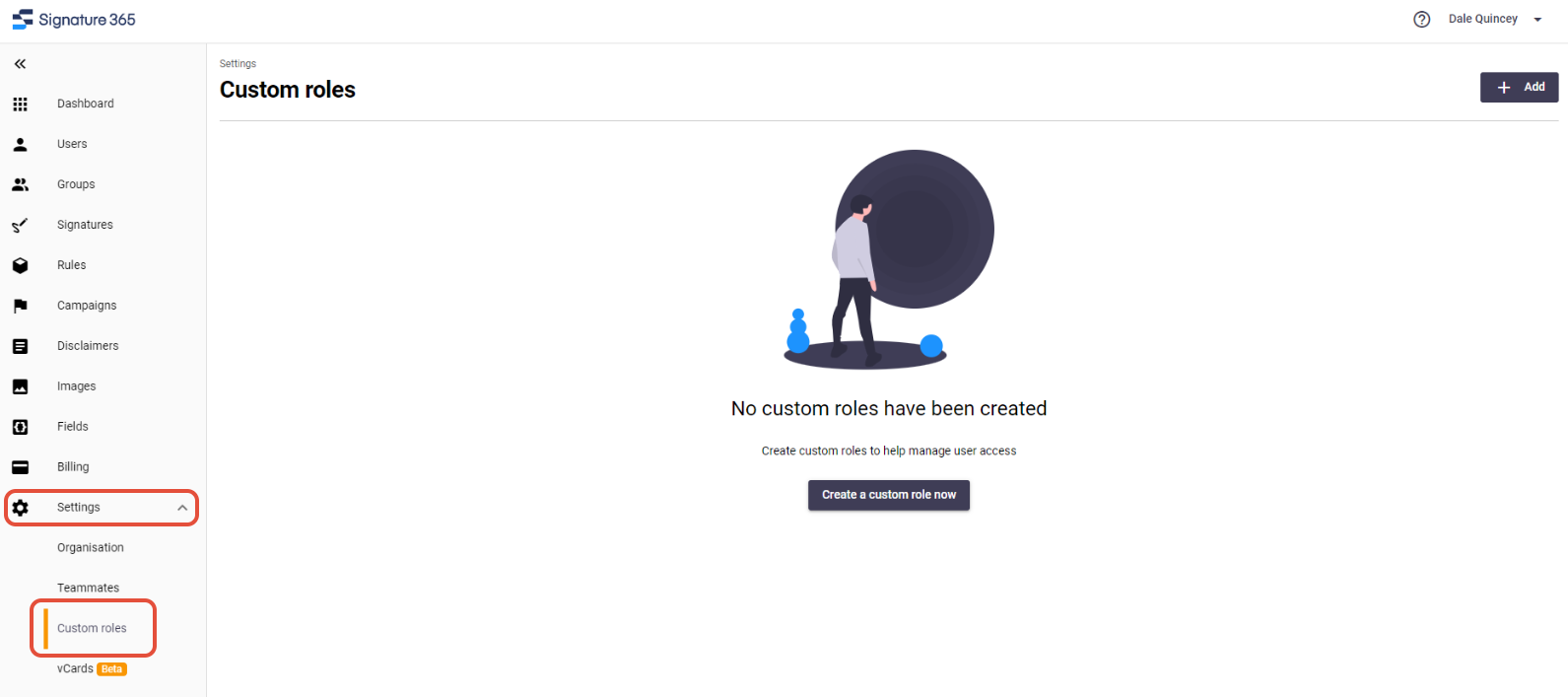
Click the Create a custom role now button to start the process.
This will open the New custom role window
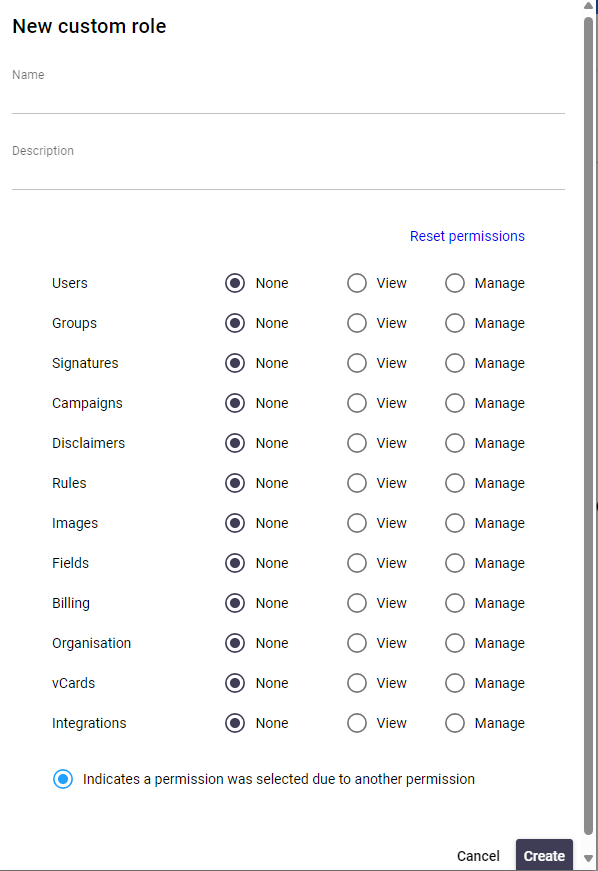
Name the role, and assign the required permissions for the role.
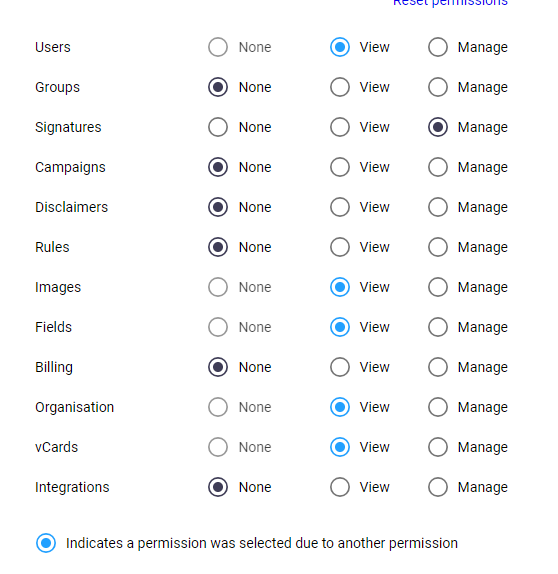
Certain permissions are automatically assigned when required, and these are identified by a blue highlight. In the example below, Manage Signatures requires View access to the Users, Images, Fields, Organisation and vCards sections.
Click the Create button, and this will create the new role.

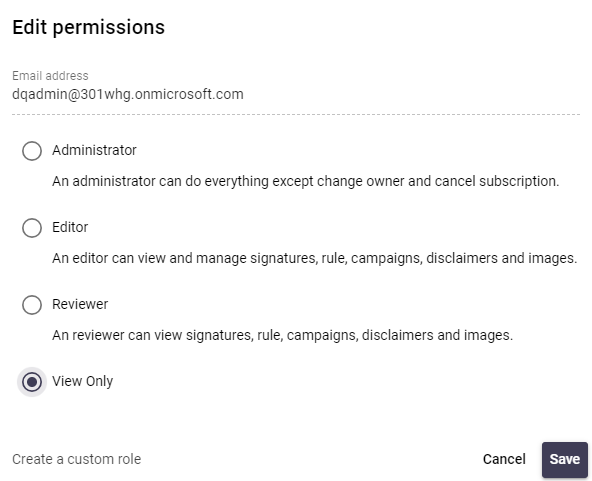
Click on the Teammates menu item and select the Edit button for the user you wish to assign the role to.
Select the new role and hit save to assign it to this user.
Outlook add-in reports "The request has failed...."
Fix the Signature 365 Outlook add-in when signatures fail to load because Exchange web services is disabled.
Signature 365 domain shows as "Incomplete setup" within Microsoft 365 Admin center
Understand why the Signature 365 smtp domain shows incomplete setup in Microsoft 365 and when it is safe to ignore.