
Outlook add-in: Opening the Outlook devtools debug window
The Symprex support team may ask you to obtain console logs from the Signature 365 add-in - to do this you may need to open the Outlook devtools window.
The methods for accessing these differ slightly based on the Outlook version you are currently using, and cannot currently be used for the mobile add-in.
Follow the steps below to access this:
Using New Outlook
- Open the run command
- Run olk.exe /dev to start Outlook in dev mode
Using OWA or Classic Outlook
- Open the Signature 365 add-in
- Click the (?) Help link to display the help information
- Press Ctrl+Shift+I on the keyboard
For both methods following screen will open - you may be asked if you wish to open Devtools beforehand by Outlook.
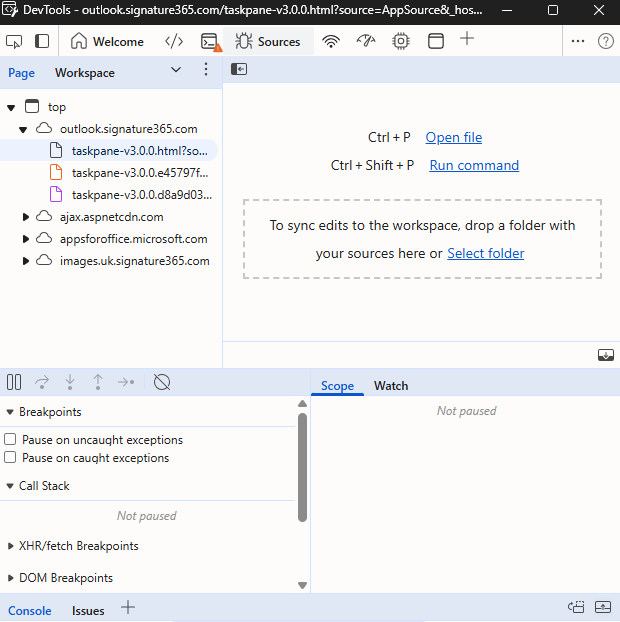
The 5 icons in the menu bar allow you to select various output displays:

From the left, these are:
Elements, Console, Sources, Network, Performance, Memory, Application
The support team will detail additional steps and which tab information is required from - they will refer to one of the tabs above.
Outlook add-in is not being deployed to users as expected
Troubleshoot delayed or missing Signature 365 Outlook add-in deployment in Microsoft 365, including wait times and direct group membership.
Outlook Classic inserts a ? instead of the correct character when adding a Signature 365 signature
Fix Outlook Classic replacing accented or special characters with question marks when inserting Signature 365 signatures.