
Creating a security group using dynamic group membership
You wish to deploy the Signature 365 Add-in to your users in an automated method, but wish to retain the ability to exclude users from the deployment
It is possible to create a security group using dynamic group membership to accomplish this. This will ensure that group membership is updated automatically by Entra ID for new users, and enable you to exclude specific users to remove the add-in if required.
You can also use this method with on-premise Active Directory extension attributes synchronised with Entra ID.
- Log on to your Entra ID tenant at the Azure Portal
- Select Microsoft Entra ID
- Select Manage then Groups
- Select the New group option to create a new group
- Ensure the group type is set as Security, and set the group name as you require
- Set the Membership type dropdown to Dynamic User
- Select the add dynamic query link
Selecting a property to filter users allows you to exclude or include specific users or groups. The following query examples detail how this can be used.
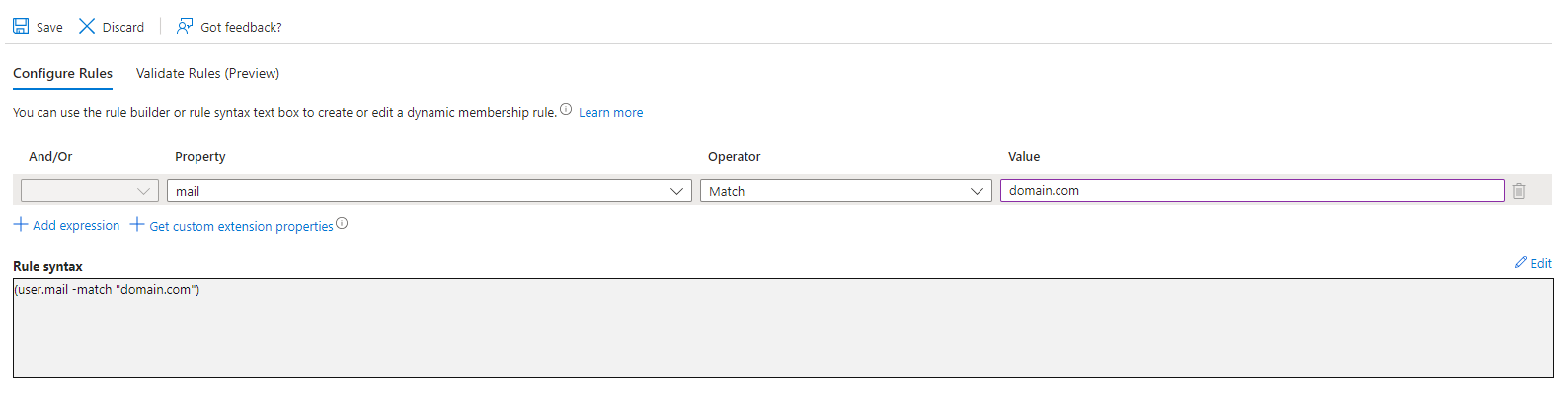
- Match all users based on email domain
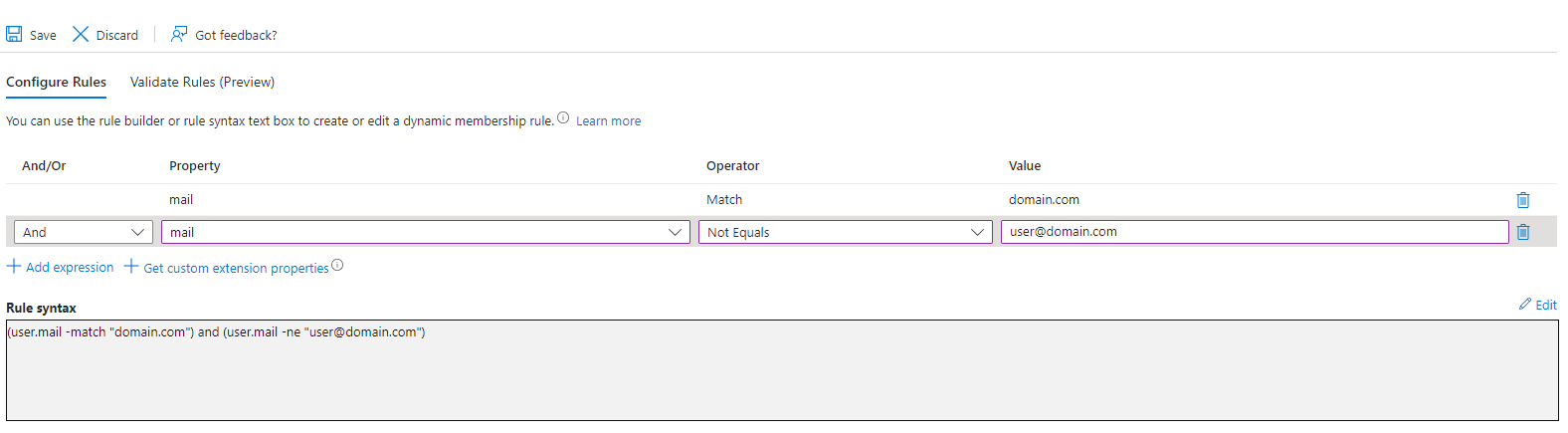
- Add an additional expression to exclude a specific user from the group
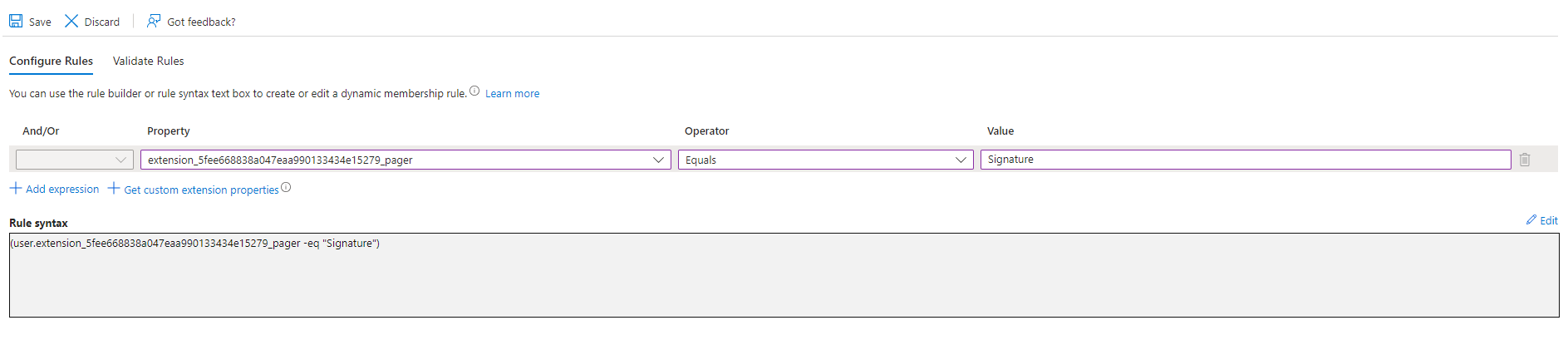
- Use an extension attribute to match all users based on an on-premise AD attribute
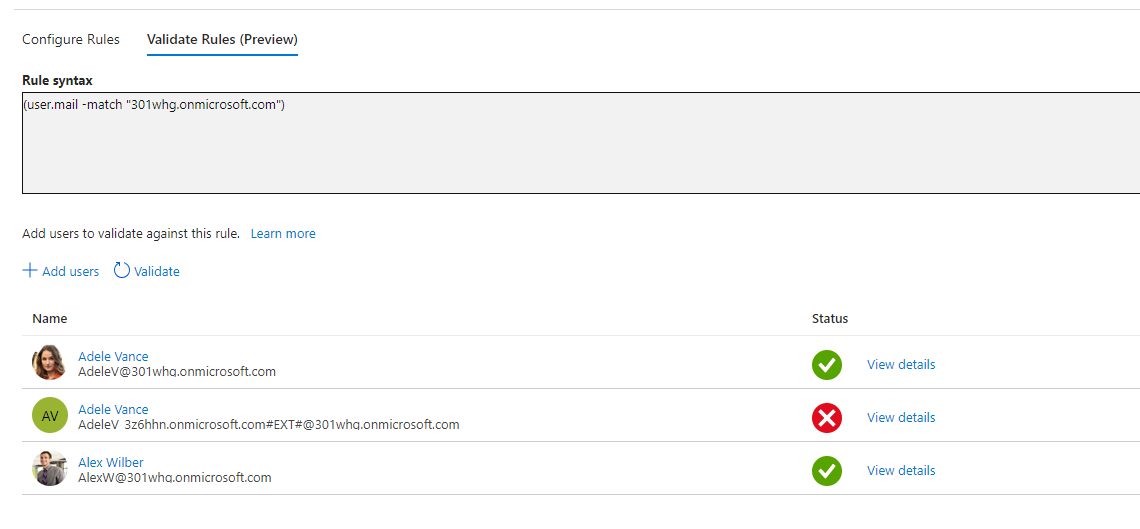
Using the Validate Rules function, the dynamic rule can be tested to ensure the correct users are being included in the rule
- Once you have confirmed the rule is correct, hit the Save button to create the new rule.
Dynamic rules can be modified to include additional expressions after they are created.
Dynamic rules are not processed immediately by Entra ID. Microsoft advises that updates to all dynamic groups are expected to process within 24 hours of changes being made. For more information, see Microsoft Learn.
Troubleshooting
Troubleshooting articles for Signature 365 client-side signatures, Outlook add-ins, mobile support, and common deployment issues.
Current versions of Signature 365 software
See the current released versions of Signature 365 add-ins, agents, and connectors, plus how each update method works.