
Enabling vCards on your Signature 365 tenant
Signature 365 offers the functionality to automatically generate vCards for your users from data that has been imported as part of any sync source.
This process generates a URL to reference the vCard, which can be included in your signature templates to share contact details
This feature is tenant wide, and currently in beta. vCards are disabled by default, but can be enabled on your tenant by following the instructions below.
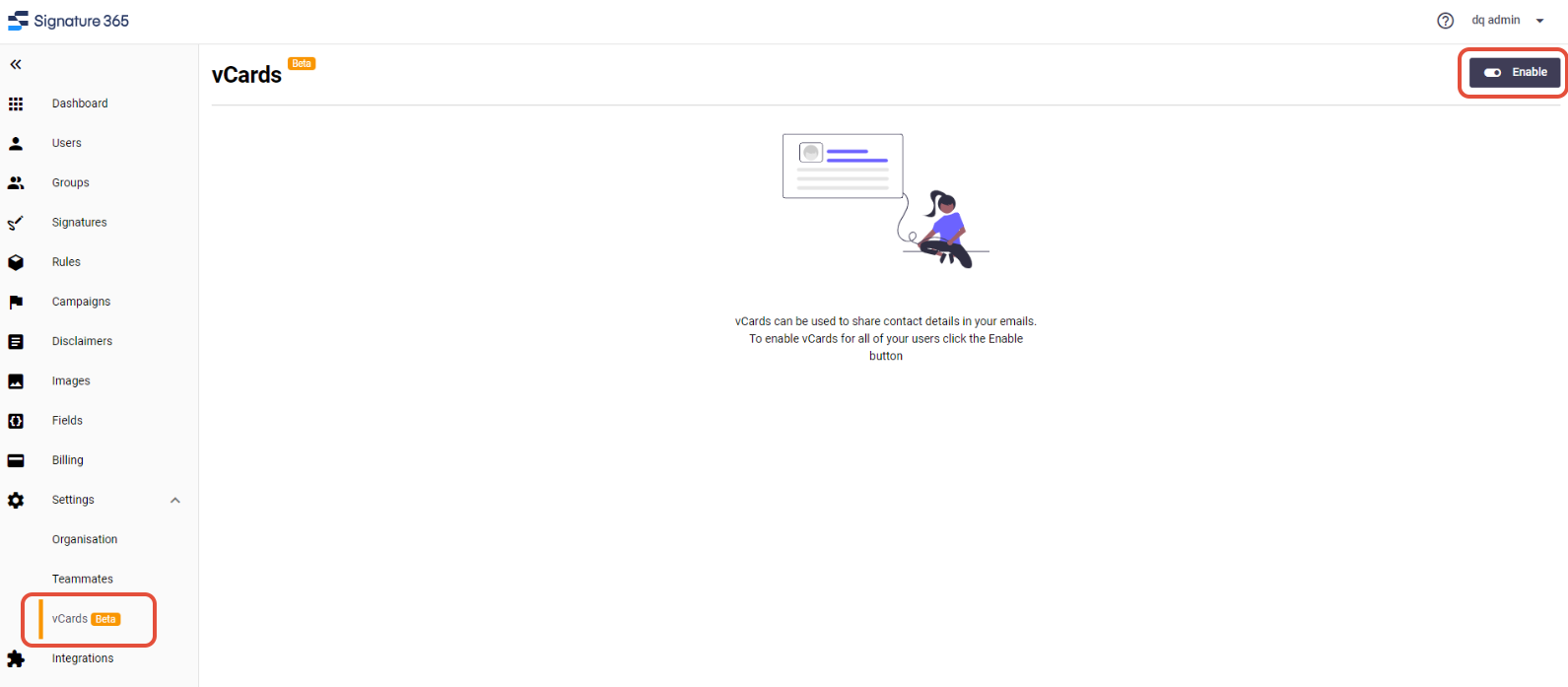
- Sign in to the Signature 365 portal and select Settings -> vCards
- Click the Enable button to turn the feature on
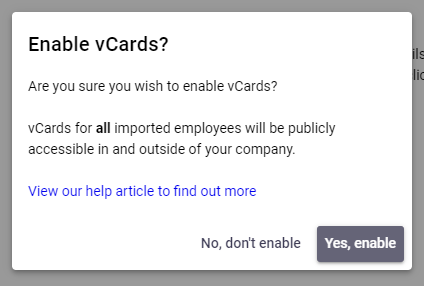
- Confirm that you wish to enable the feature
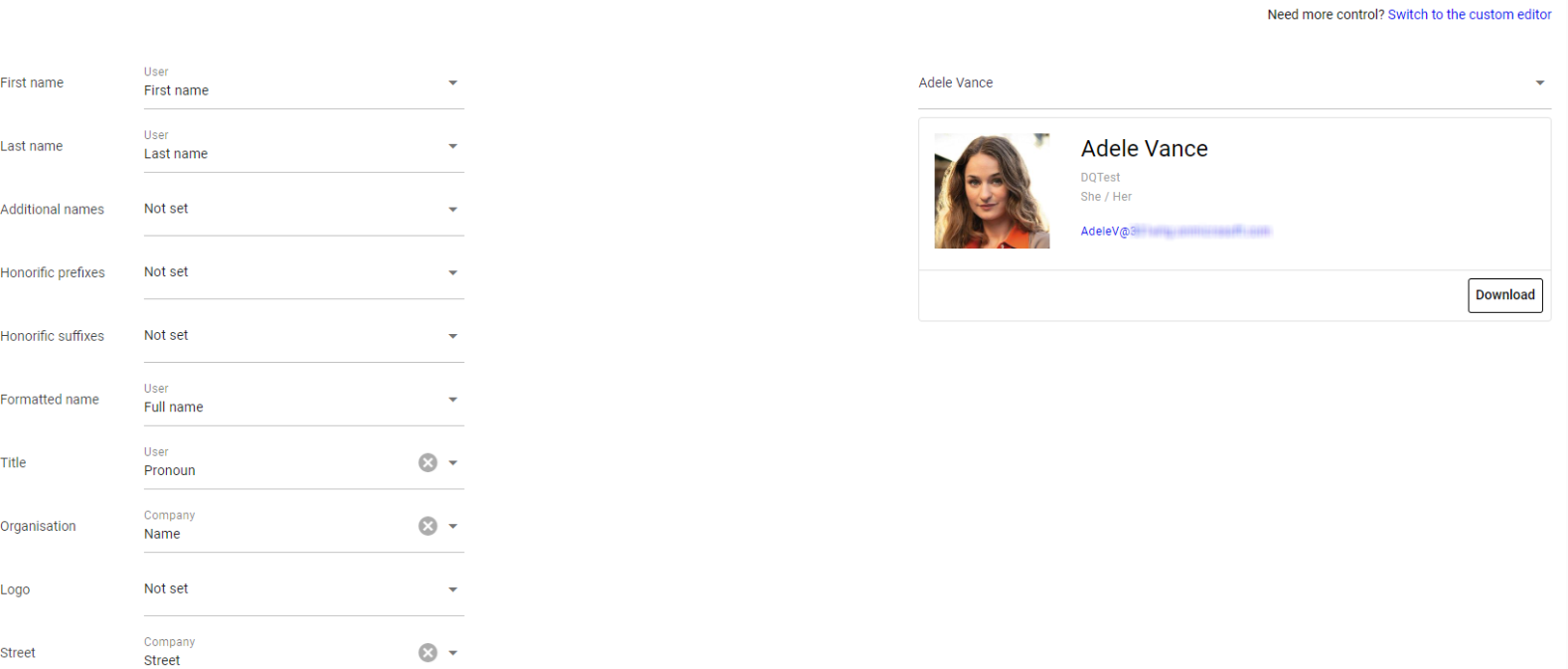
By default, vCards are generated using default settings for name, job title etc. Many fields are left as Not Set and can be set from any attribute available to the user.
On the right hand side of the page, you will see a preview of the vCard, which will update as changes are made to fields.
If additional control over the formatting of the vCard is required, its possible to use the Switch to the custom editor link at the top right of the screen to enable this.
This mode gives direct control over the formatting of the vCard but requires knowledge of the vCard syntax.
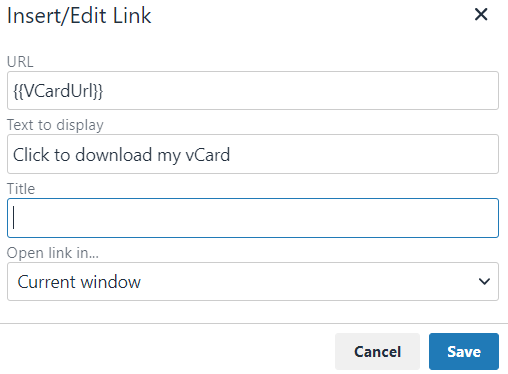
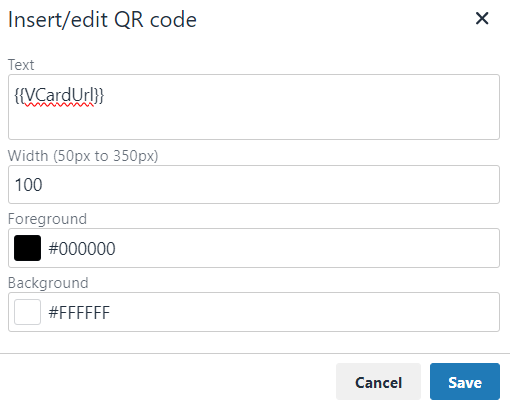
You can use the following field in the template editors to reference the vCard for each user:
{{VCardUrl}}
This field can be used in a number of ways:
Configuring your Signature 365 Tenant to use hotlinked images
Request tenant-wide hotlinked images in Signature 365 and understand attachment and red-X trade-offs in supported mail clients.
Microsoft 365
Guides for configuring and managing Signature 365 integration with Microsoft 365, including tenant migration, security groups, and custom attributes.