
Using Signature 365 in a hybrid configuration with on-premise Exchange mailboxes
If you are using Signature 365 with Microsoft 365 mailboxes and then try to use the add-in with an on-premise mailbox, you may receive an error similar to the following:
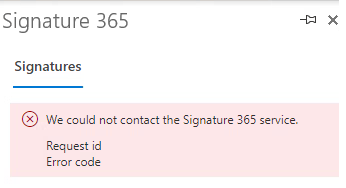
Checking the add-in logs on your device, you may see the following error:
[Log] [S365] [messageCompose] https://id.signature365.com/connect/token failed
Signature 365 must confirm the authenticity of the user contacting the service. For on-premise mailboxes, this can only be done by contacting your on-premise Exchange server.
Our identity servers do this by contacting the Autodiscover URL for your on-premise Exchange server to authorise the user.
If your firewall blocks access to this endpoint, Signature 365 can receive either a 401 unauthorised response or a timeout. That causes the errors listed above.
You must allow access to your on-premise Exchange Autodiscover URL through any external firewalls so Signature 365 can authorise your on-premise users.
Our identity servers are a global resource and use the region closest to the connected user. If your users are geographically closer to another region, that region's identity server may be used.
The external IP addresses are listed in Signature 365 SMTP host list and IP whitelist. Allow those IP addresses to access your on-premise Exchange server so authentication can complete successfully.
Next steps
- Deploy the Outlook (Classic) agent for users who need on-compose signatures with on-premise mailboxes.
- Allow the IP addresses in Signature 365 SMTP host list and IP whitelist.
- If you also use Microsoft 365 mailboxes, review How to install the Outlook add-in and How Microsoft 365 server-side signatures work for those scenarios.