Assigning a signature to an email alias
If you send email from an alias address, you can use Signature 365 rules to apply a different signature to that alias.
Signature 365 can select a signature based on the from address sending the email. To best demonstrate this functionality, consider mailbox john.doe@brandyouremail.io with the alias email address john.doe@brandmyemail.com.
Rule Configuration
You will need to ensure your signature templates are created, once this is completed we can define the deployment of the signatures to the alias address.
You will require at least 2 rules to achieve this behaviour; one targeting the alias email address and the second applying to your main email address.
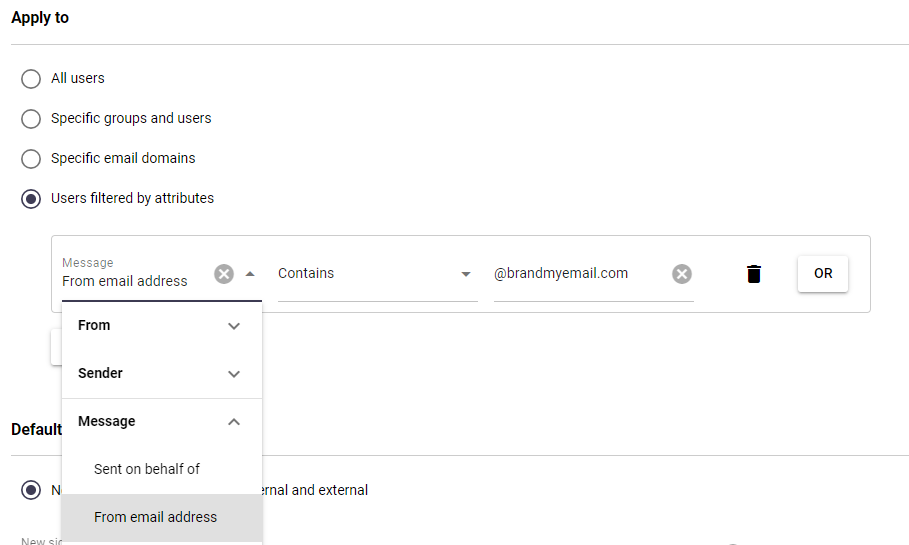
The first rule will assign a template to all users using the alias @brandmyemail.com. If you wish to only target an individual user enter the full alias email address instead of @brandmyemail.com
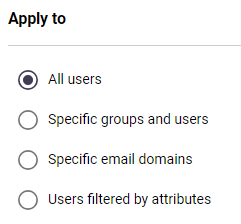
The second rule is configured as normal, in this example a generic signature is applied to all users:
Rule Order
To ensure the priority of the rules is correct, the rule applied to the alias address must be higher priority:

If the alias address rule is not matched first, the users primary email address will be applied.
Result
When sending an email from the primary email account the correct signature will be applied:

When sending from an alias email address the signature for the alias address will be applied: