
Using S/MIME with Outlook mobile
You wish to use S/MIME encryption with Outlook mobile, but when attempting to enable signing or encryption using the same certificate as Outlook Desktop and OWA, you see the following error:
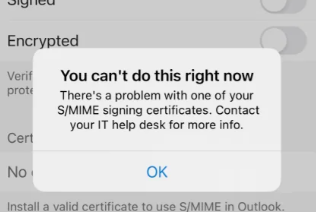
Unlike an on-premises Exchange server, Exchange online does not by default trust any publically or privately trusted root or intermediate CA's under which S/MIME certificates are issued.
To allow this, we must import the appropriate CA trusts on your Microsoft 365 environment.
Generate the SST (Serialized certificate store) file
It is required to select 2 or more certificates to export an SST file. We suggest selecting your S/MIME certificate and a Trusted root certificate from a trusted certification provider such as Digicert or Verisign.
- Open the run command and start certmgr.msc
- Move or copy any required Intermediate CAs from the Intermediate Certification Authorities folder to the Trusted Root Certification Authorities folder - SST export can only reference 1 folder
- Select ‘Trusted Root Certification Authorities’, and select ‘Certificates’
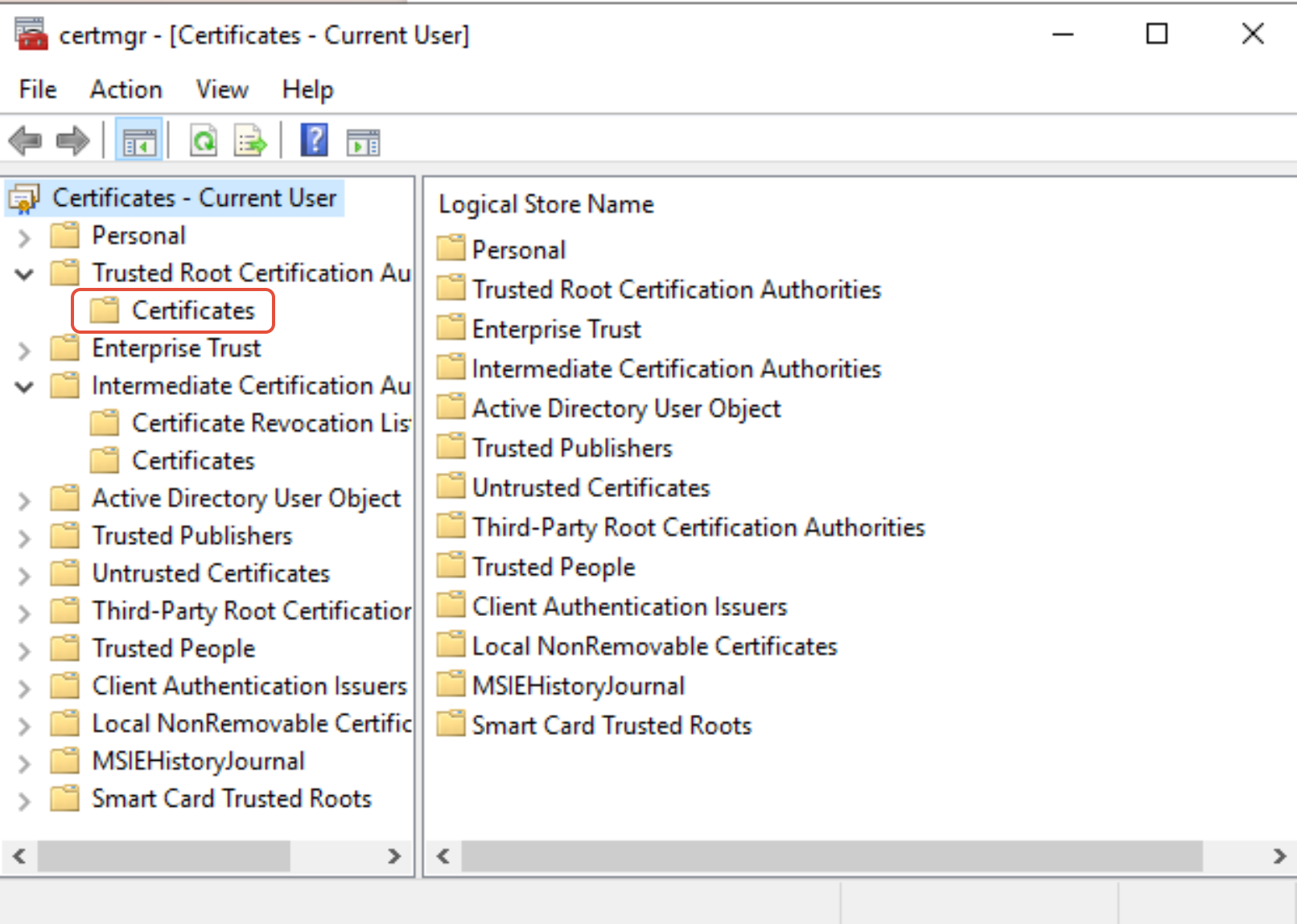
- Select the valid Root and Intermediate certificates for your S/MIME certificate using Ctrl-Click. Ensure only non expired certificates are selected
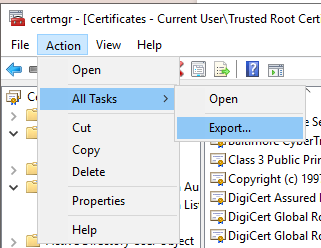
- From the menu, select Action -> Export
**
 **
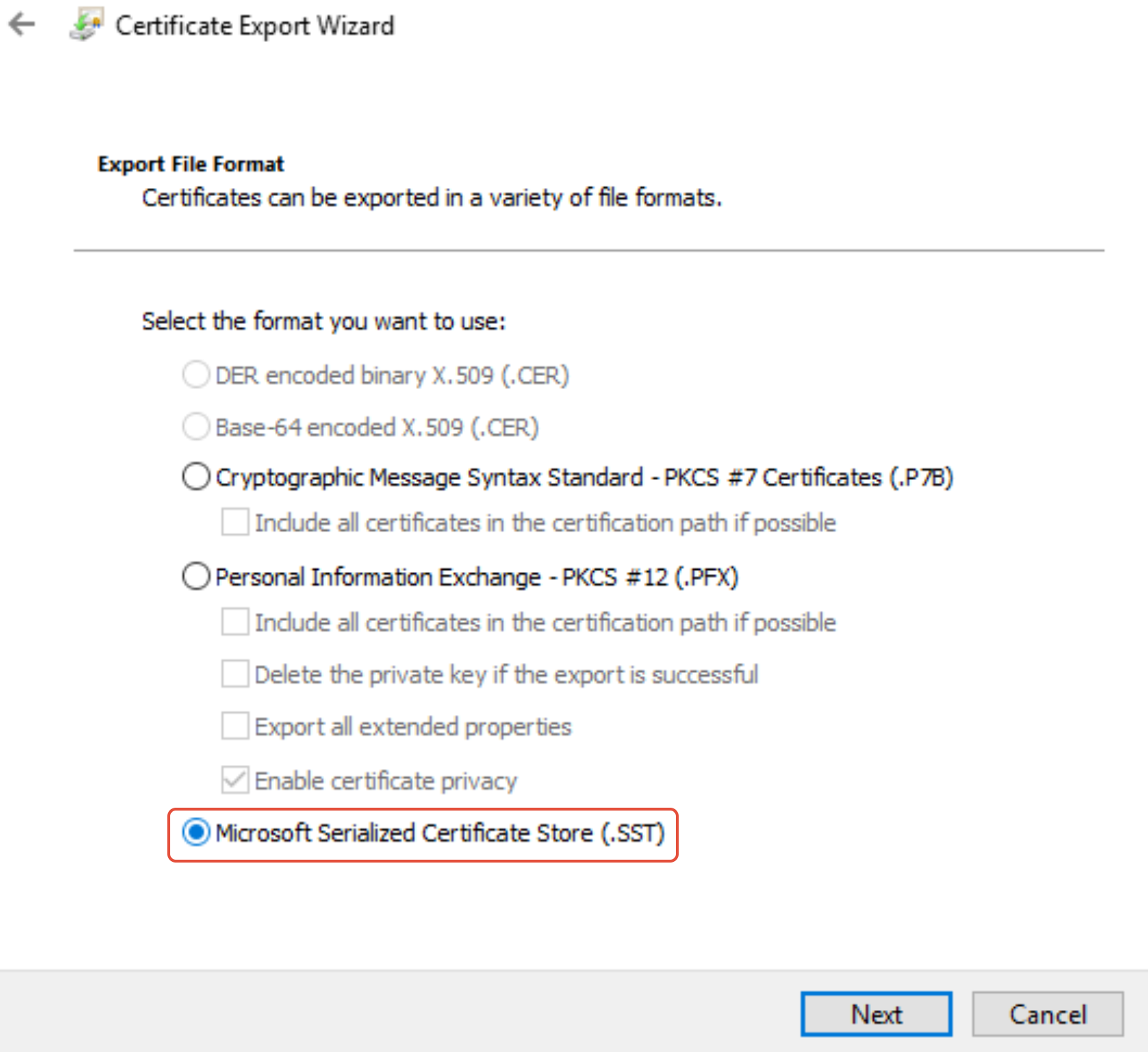
** - Select the SST option, then Next. This option will be unavailable if a single certificate is selected.
**
 **
** - Name the SST and save to a location
- Complete the export
Upload the SST file to Microsoft 365
Now that you have the SST file, it needs to be configured within Microsoft 365.
- Open PowerShell and install the required Exchange Online PowerShell module if it is not already installed:
Install-Module -Name ExchangeOnlineManagement -force - Load the module with the following command:
Import-Module ExchangeOnlineManagement - Connect to Exchange online with your admin account replacing the generic account below
Connect-ExchangeOnline -UserPrincipalName user@domain.com
A browser will open requesting your authentication credentials. - Run the following command, replacing the sample SST filename and location with your own:
Set-SmimeConfig -SMIMECertificateIssuingCA ([System.IO.File]::ReadAllBytes('C:\My
Documents\myvirtualcertcollection.sst'))
The command will complete with no feedback. If uploading a previously configured SST, you will see the following confirmation:

After successfully uploading the SST, wait approximately 1 hour for the sync to complete in Exchange.
When using Outlook Mobile, your S/MIME certificate will now be trusted.
Supported Outlook versions for Signature 365 client signatures
Compare supported Outlook versions and features for the Signature 365 modern add-in and Classic Agent.
Using the Aptos font in Signature 365
Use Aptos in Signature 365 by installing the font on sending and receiving devices, despite browser and OWA limitations.