
Exclude autoreplies from signature insertion
If you use Signature 365 server-side injection, automatic replies can receive signatures because they are sent from Exchange and therefore always go through server-side injection. Due to Exchange Online mail flow rule behaviour, you may also see this affect users who are not configured for server-side injection.
To prevent this behaviour, create a mail flow rule in the Exchange Online admin console to exclude all automatic replies.
The new rule will be triggered before the existing Signature 365 transport rule, and will prevent all automatic replies from receiving a signature by marking the message as already processed.
Log on to the Exchange admin centre mailflow transport rules page and select Add a rule then Create a new rule.
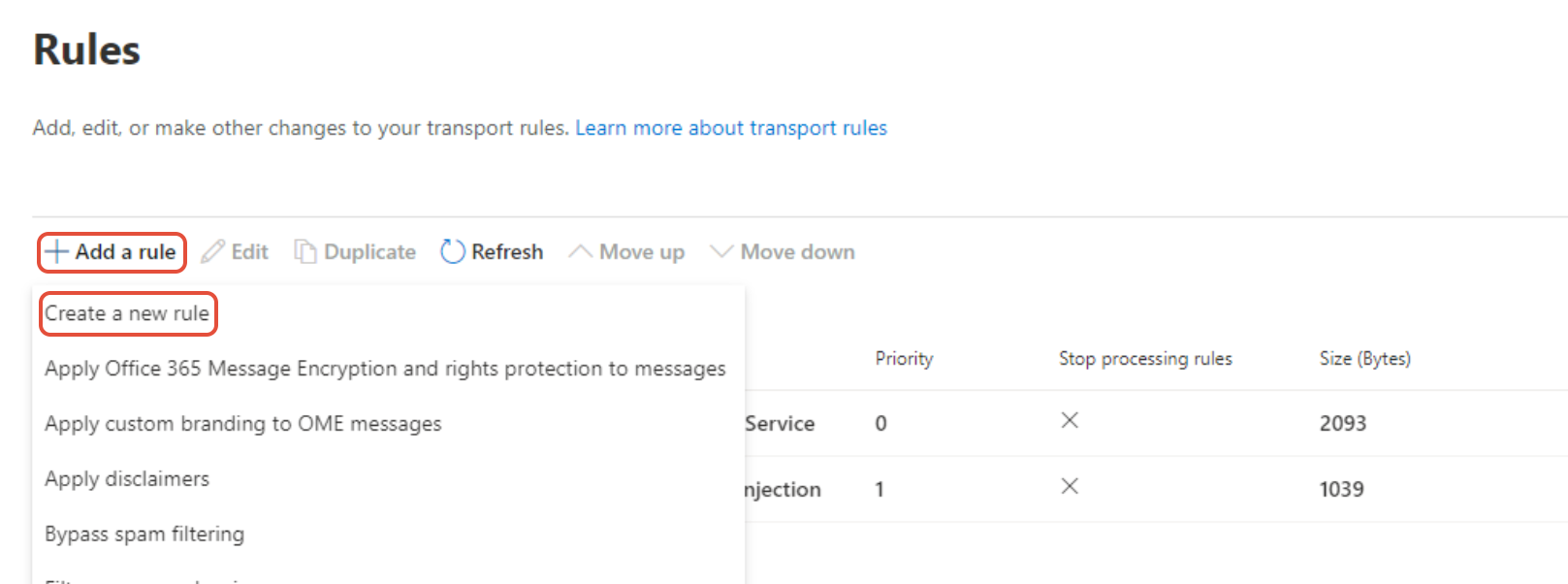
Name the rule Prevent signature injection for autoreplies and set Apply this rule if to The message properties and include the message type.
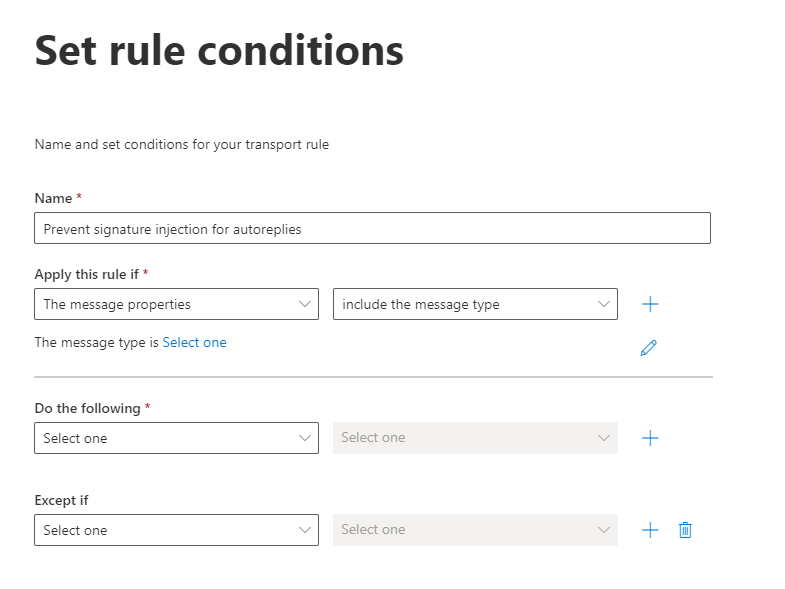
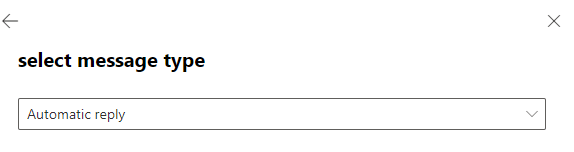
Click Select one, select Automatic reply from the drop down and click Save
Under the Do the following section, set the options to Modify the message properties and set a message header.

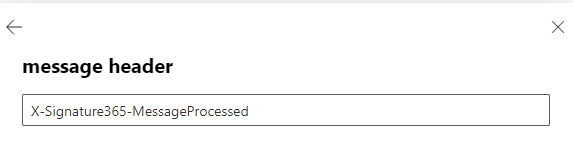
Click the Enter text options, set the message header to X-Signature365-MessageProcessed and the value to true.
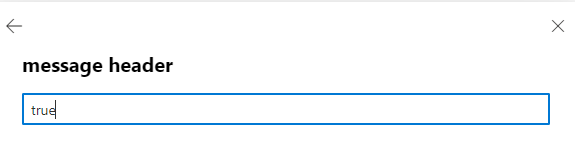
Click Next and leave the settings as default on the following screens. Review the settings and click Finish.
Edit the rule priority to place the new rule before the Send to Signature 365 for signature injection rule so that it takes effect. We recommend setting the new rule to priority 0 and the existing rule to priority 1.
Select your newly created transport rule, click Edit rule settings, set the priority to 0 and save the rule.
Create an exclusion group to exclude users from server-side injection
Create a Microsoft 365 group and mailflow rule exception to exclude selected users from server-side signatures.
Exclude signatures on Microsoft Planner comment emails
Prevent Signature 365 adding signatures to Microsoft Planner comment notification emails.