
Updating the Signature 365 Outlook add-in
An update has been released to the Signature 365 Outlook add-in, and you have been advised by Symprex that the Signature 365 add-in must be manually updated to take advantage of the improvements it contains.
Information
Whilst the Outlook add-in will in most cases self-update when installed from either the Microsoft 365 integrated apps deployment, or when manually installed using the manifest XML, there are occasions where a major update to the add-in will require a redeployment to allow the update to occur.
In these situations, information will be sent out from the Symprex social media feeds, or by an email update to customers. There are circumstances where a member of the support team will request that this be completed.
The update process will differ depending on how the add-in has been installed for your users.
Log on to the Microsoft 365 Admin center as a Global Administrator.
Go to Settings > Integrated apps to open the Integrated apps page. The Signature 365 app will show Updates pending as its Status.
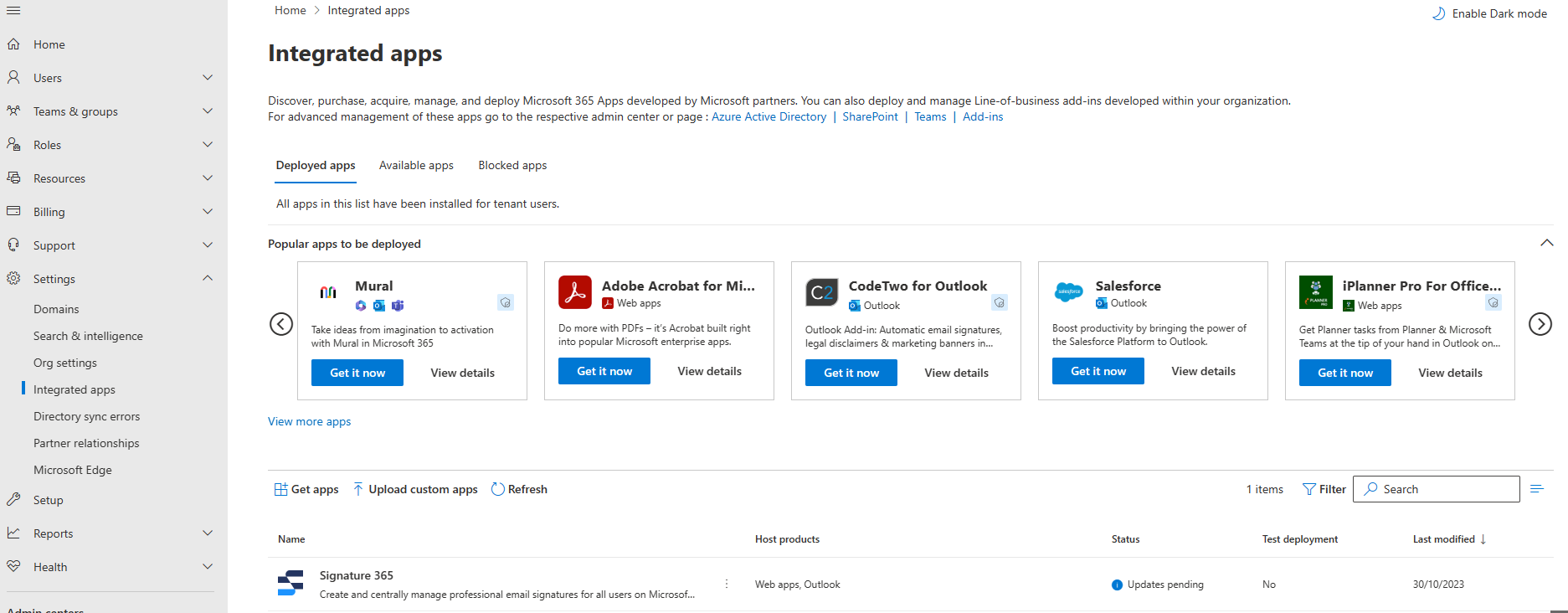
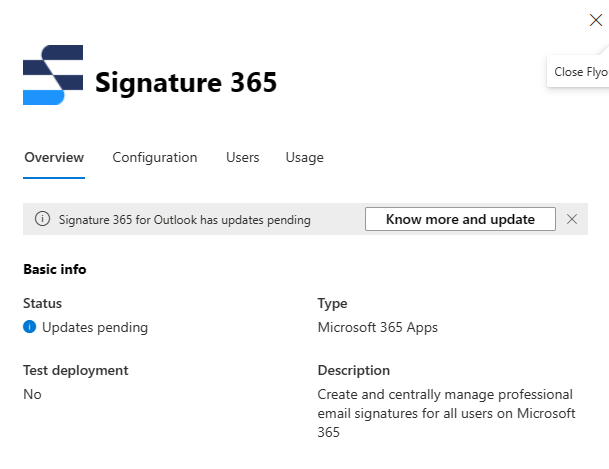
Click on the app name. In the flyout on the right-hand side of the screen, select the "Know more and update" button.
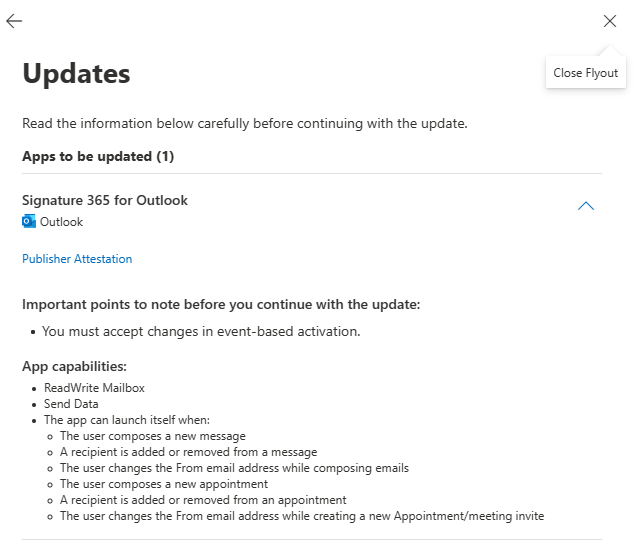
The next page will detail the changes and any new capabilites the app can perform.
Review the next screen, and select the "Accept and update" button.
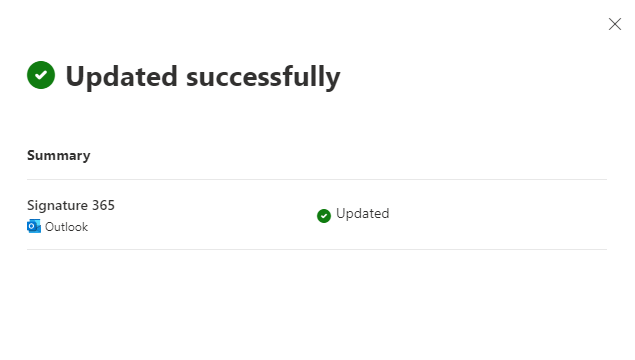
Wait for the update process to complete - once this is finished, click the "Done" button.
Log on to the Microsoft 365 Admin center as a Global Administrator.
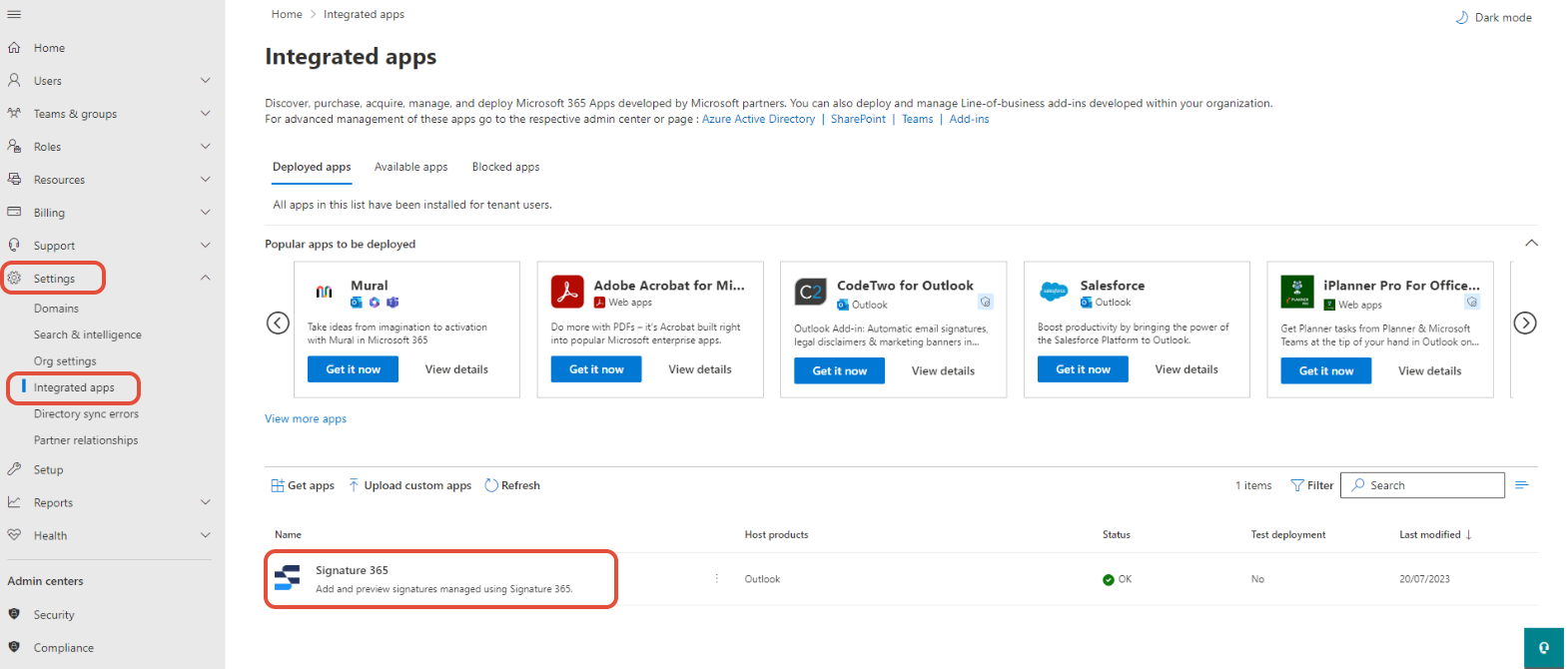
Go to Settings > Integrated apps to open the Integrated apps page, and click on the Signature 365 app.
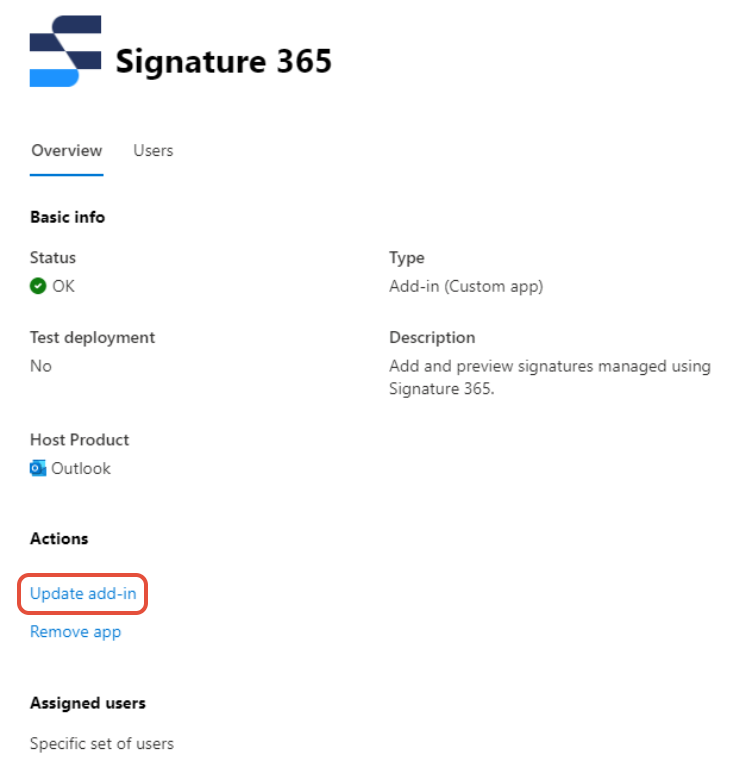
In the flyout on the right hand side of the screen, select the "Update add-in" link under Actions.
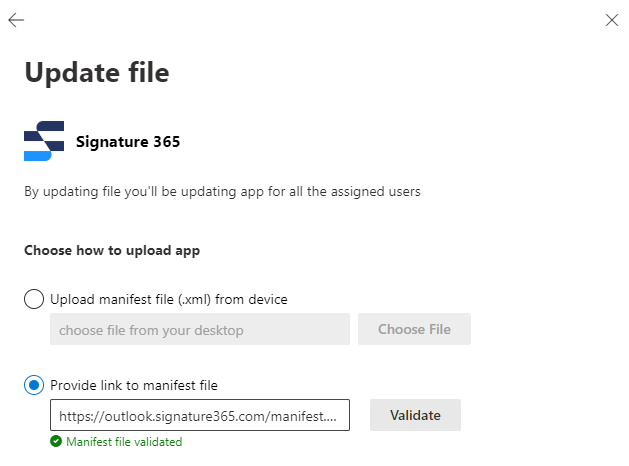
Select the "Provide link to the manifest file" option, and enter
https://outlook.signature365.com/manifest.xml
for the URL of the manifest file and hit Validate. When the file is shown as validated, click Next.
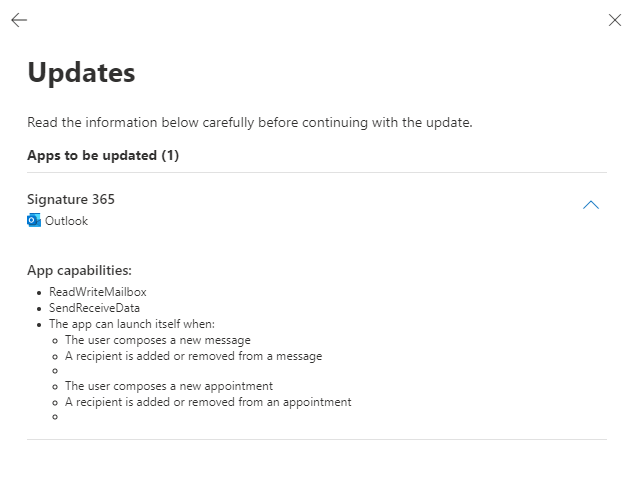
Review the next screen, and select the "Accept and update" button.
Wait for the update process to complete - once this is finished, click the "Done" button.
From a web browser, navigate to the following link - https://aka.ms/olksideload. This will open the Outlook add-ins page.
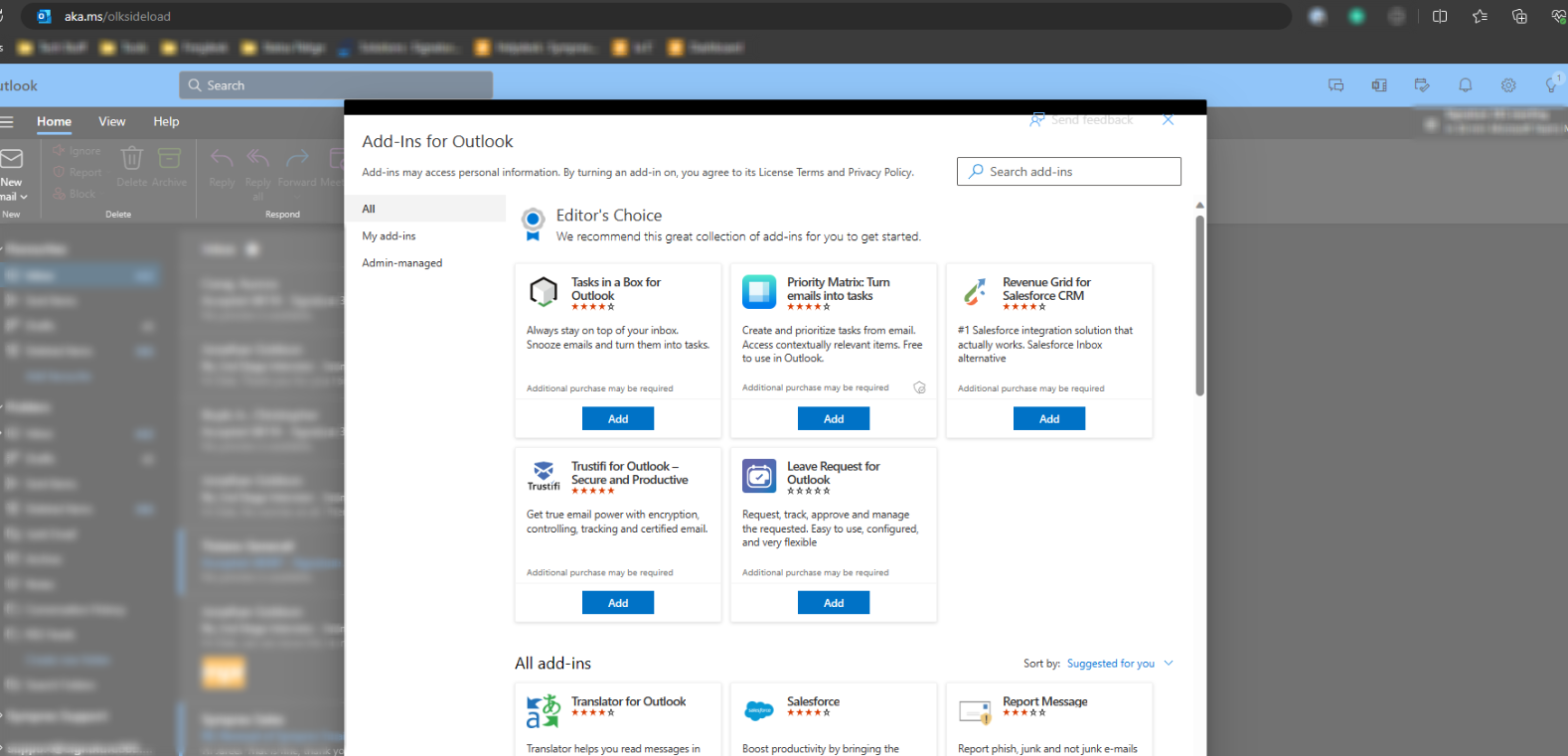
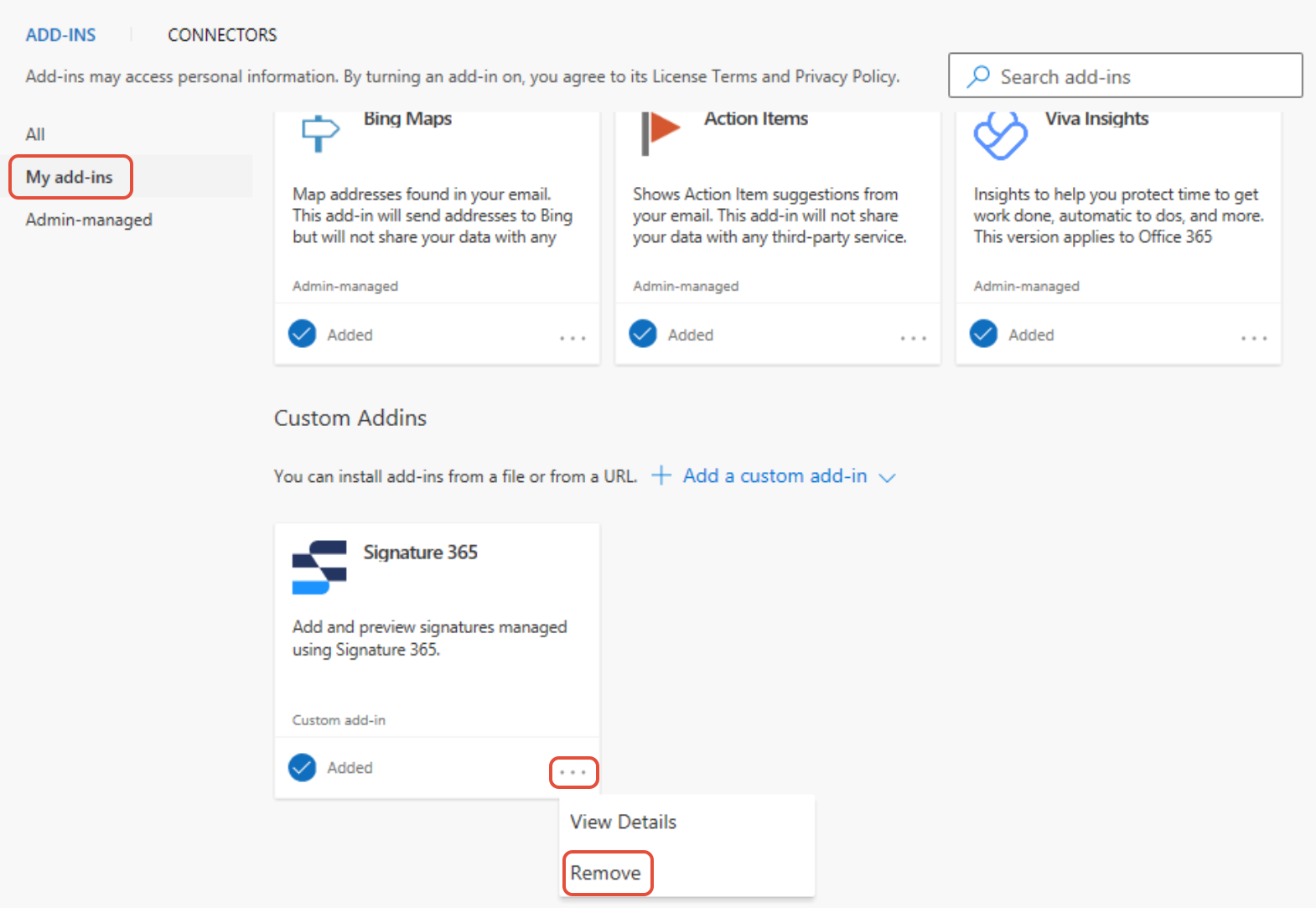
In the Add-ins window that opens, select My add-ins, and scroll down until you see the Custom Addins section. The current add-in will be listed here, click the Manage Add-in button, and select Remove.
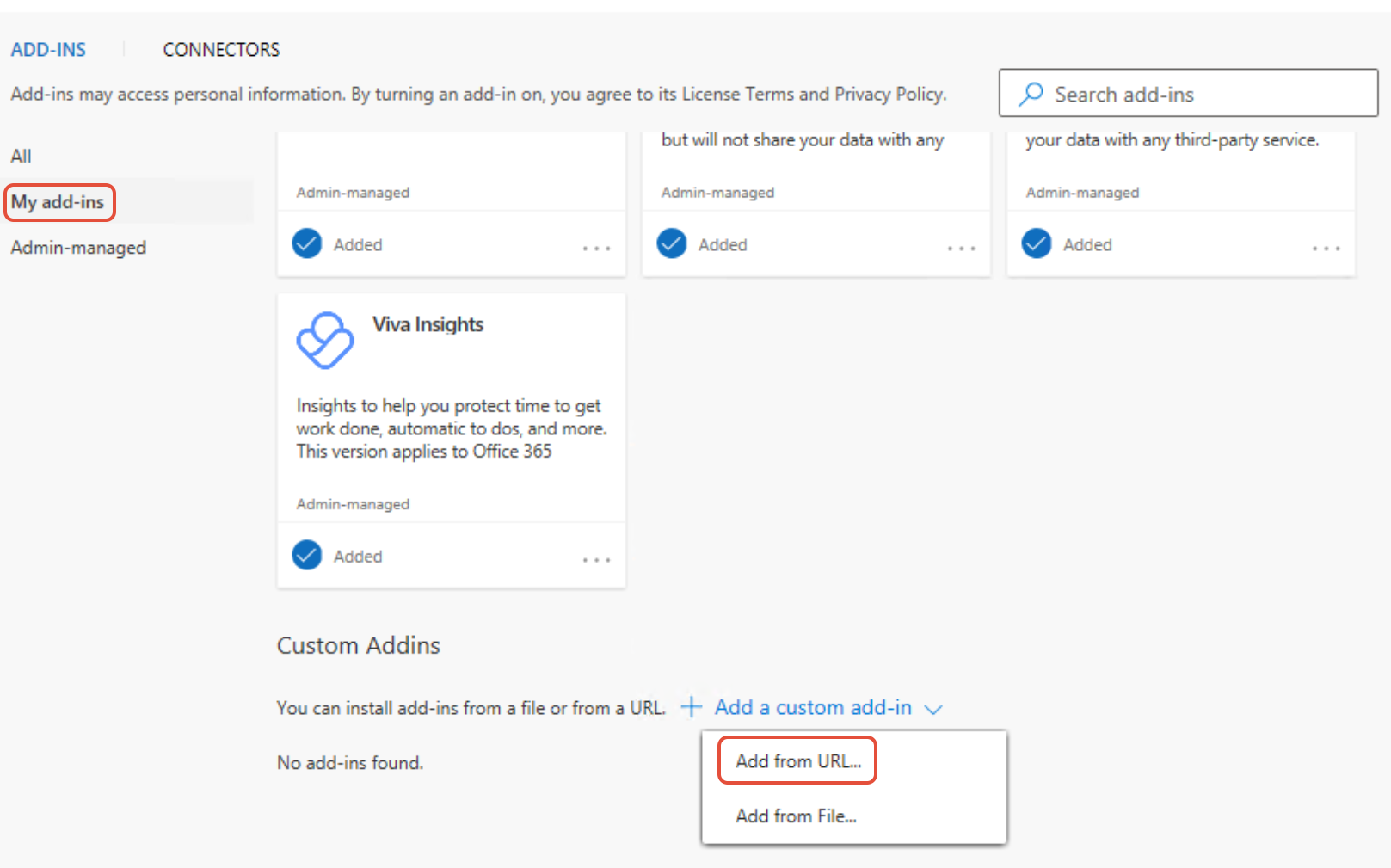
Once removed, click + Add a custom add-in and in the dropdown that appears select the Add from URL... option.
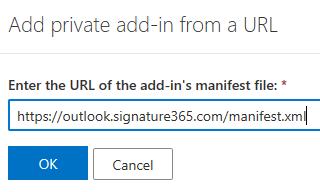
In the pane that opens, enter https://outlook.signature365.com/manifest.xml for the URL of the manifest file.
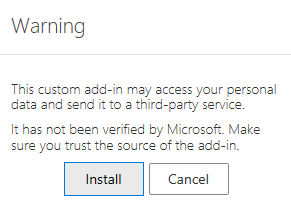
Review the warning and Select Install.
The Signature 365 addin will appear in the Custom Addins section, and will now be available when composing a new message.
Managing personal signatures, fonts and stationery for "New" Outlook and Outlook on the web
Use Exchange Online PowerShell to manage New Outlook and Outlook on the web fonts, stationery, and user-created signatures with Signature 365.
Version requirements for the Outlook mobile add-in
Check the Outlook Mobile and Signature 365 add-in versions required to use client-side signatures on iOS and Android.