
Removing Email Signature Manager following migration to Signature 365
If you have recently migrated from Email Signature Manager to Signature 365, you can remove the remaining Email Signature Manager components from your devices and network. The sections below cover the SIS injection service, Entra ID applications, Signagent and the Email Signature Manager server.
SIS Injection Service
This process must be completed in the Exchange admin center, the steps below will detail how to complete this process.
- Log on to the Exchange admin center
- Select Mail flow and then Rules from the menu
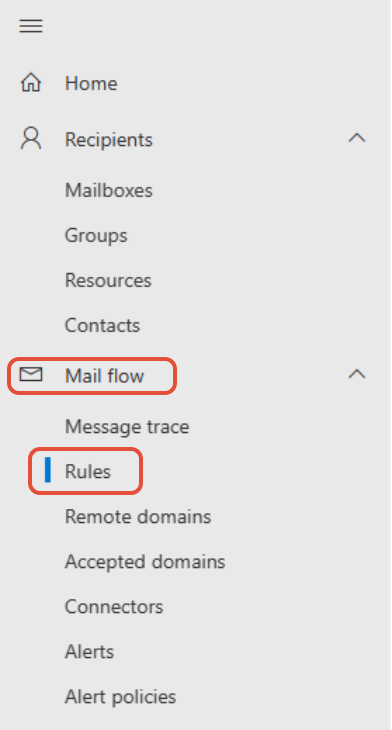
- Select the Send to Symprex Signature Injection Service rule, and select the Delete option


- Select the Connectors menu option
- Select the Send to Symprex Signature Injection Service and Receive from Symprex Signature Injection Service connectors individually, and select the Delete option for each

Entra ID components
Depending on your configuration, there may be 2 Enterprise Applications present in Entra ID.
These can be found by logging on to the Azure portal at portal.azure.com, selecting the Enterprise applications option, and searching for symprex email in the search bar.
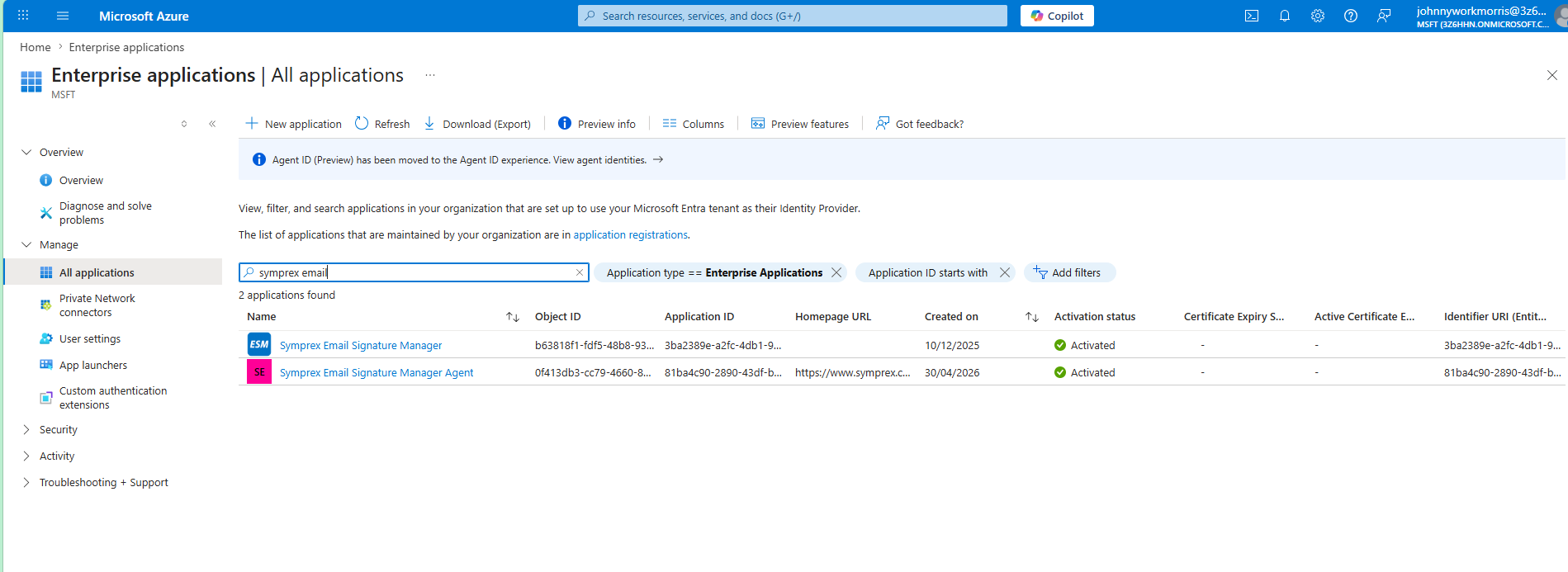
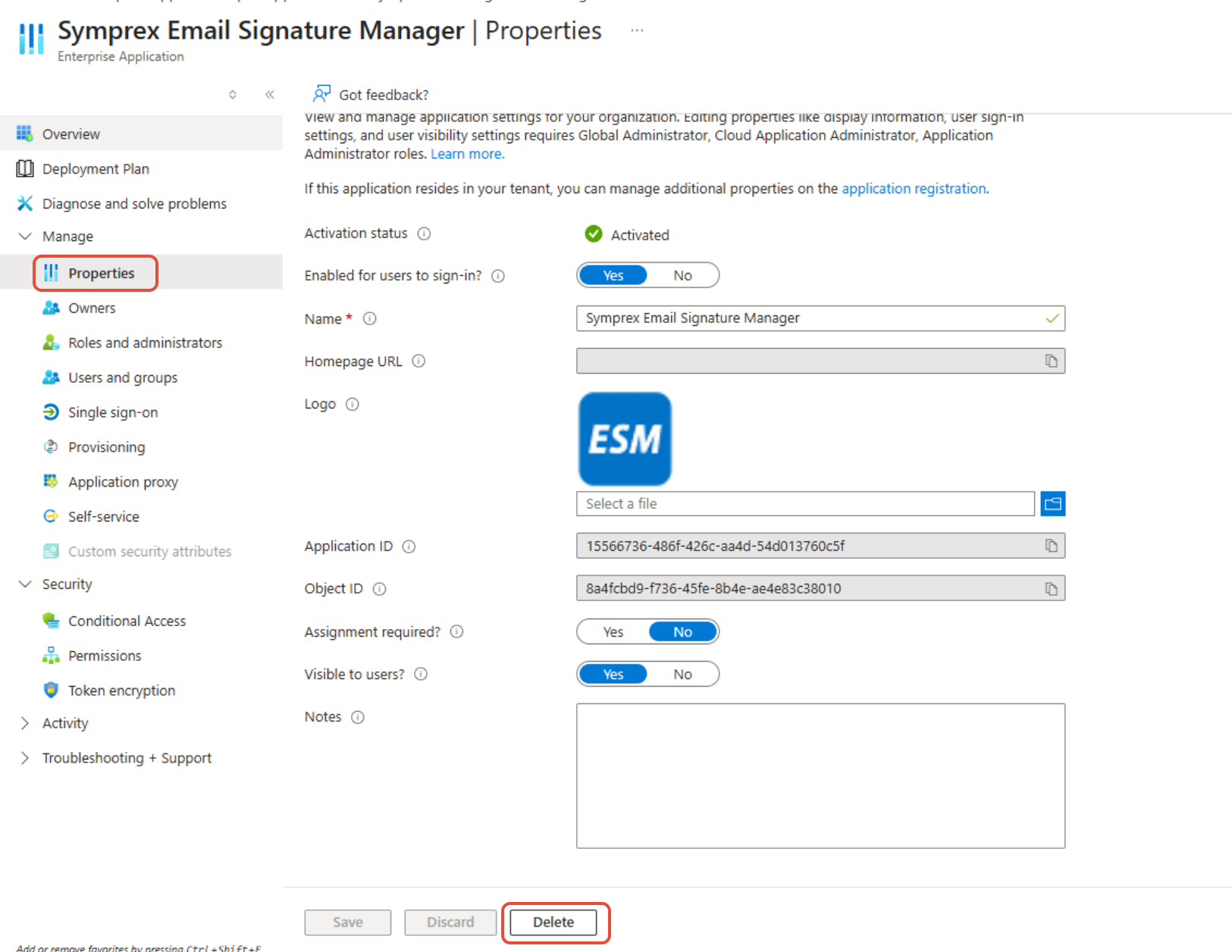
Select each of the 2 applications, select the Properties option from the menu, and select the Delete option.
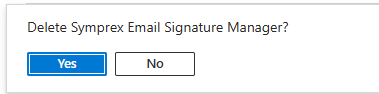
A confirmation window will appear, select the Yes option.
Repeat this process for the Email Signature Manager Agent entry, if present, and refresh the application list once completed.
This completes the process of removing the ESM components from your Entra ID and Exchange Online tenants.
ESM Agent
Signagent should ideally be removed from your client devices before the Email Signature Manager server is uninstalled.
If you wish to remove local Outlook signatures deployed by the ESM server, you should ensure the "Remove all signatures other than those specifically deployed" is selected from Configuration -> Deployment Options.
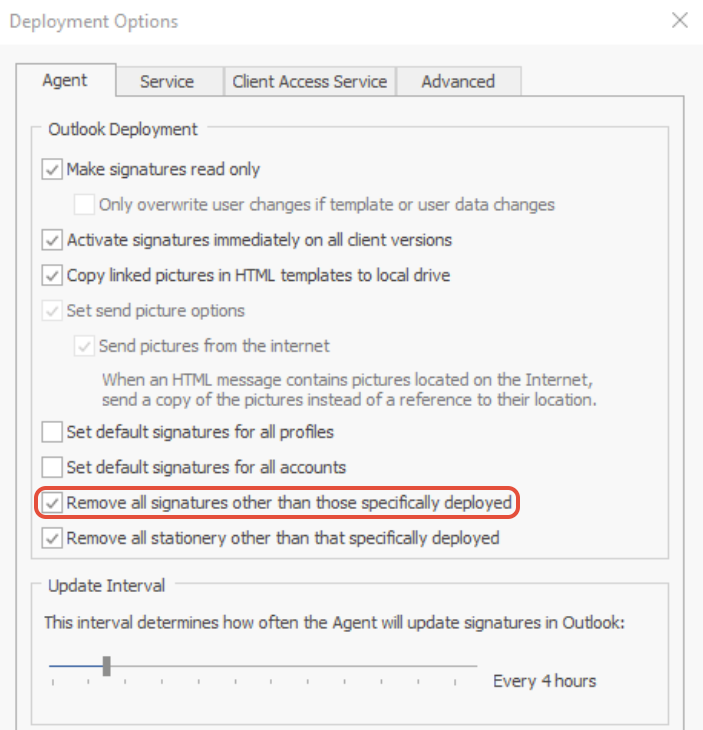
After that, use the Manage Deployment option in Email Signature Manager and remove all deployments from all users and groups.
As the last step, complete a full update cycle using the Update All button, this will ensure that all deployed signatures are removed from devices on the next Signagent update cycle.
The agent can also be removed using the information in the following article: Uninstalling the Email Signature Manager agent programmatically.
If you have already removed Signagent from your devices, use the information in the following article to remove all local Outlook signatures: Managing personal signatures, fonts and stationery for Outlook desktop.
Remove ESM installation
On the ESM server:
- Open Email Signature Manager
- Select the Configuration tab in the ribbon
- Select the Configuration page in the backstage
- In the Deployment Options dialog, select the Client Access Service tab
- Under Service Connection Point, click the Delete button
- Confirm you want to delete the Service Connection Point in Active Directory
- Test the Email Signature Manager Agent connects to the new server
- Close Email Signature Manager
- Uninstall Email Signature Manager