
How to update the group assigned for server-side injection
You can update the group assigned to receive server-side injection within Signature 365 using either of the two methods below.
If you wish to apply the rule to multiple groups, it is only possible to configure this through the Exchange Admin center.
If you update these groups in the Exchange admin centre, the Signature 365 portal will not reflect the change.
To update this group using Signature 365, use the following link:
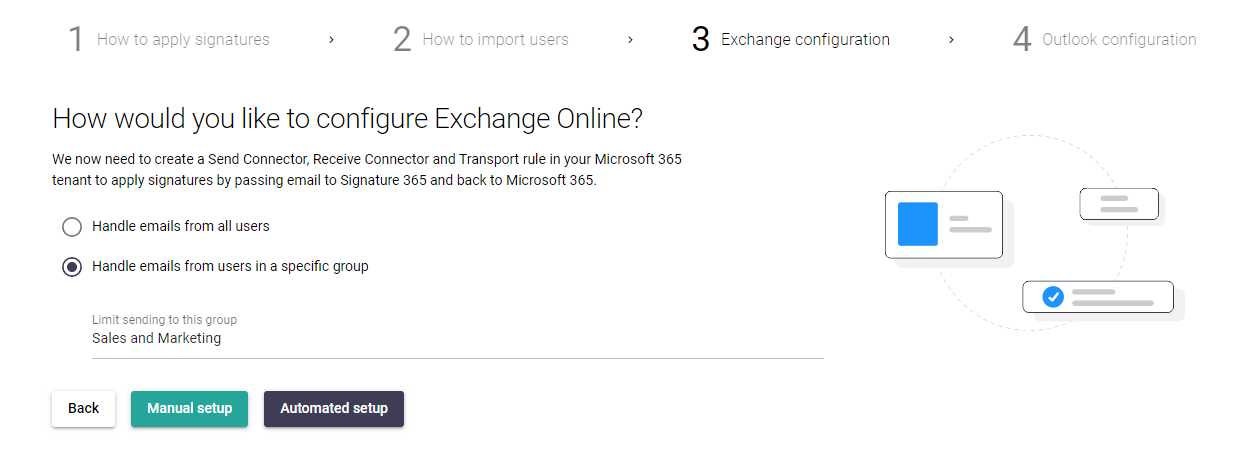
This will take you through the exchange setup process and allow you to update the group selected, or apply server-side signatures to all users.
Log on to the Microsoft Exchange Admin centre, and select the Send to Signature 365 for signature injection rule.
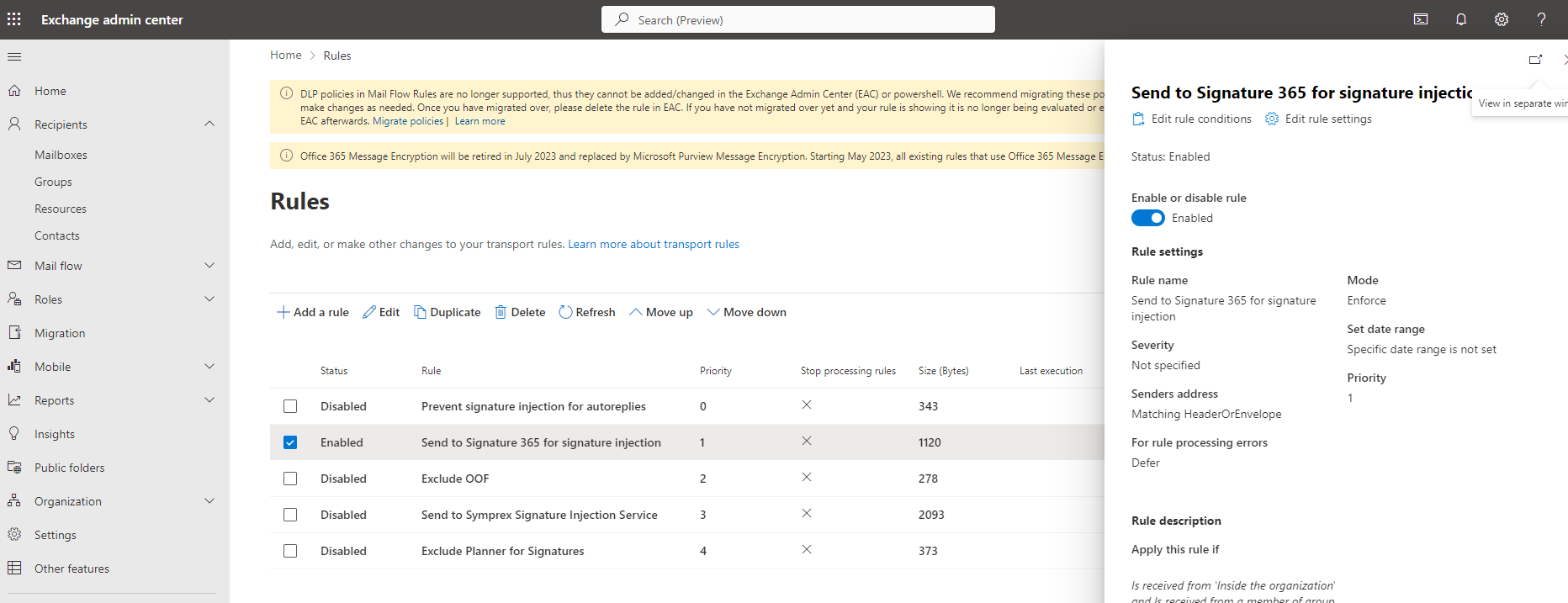
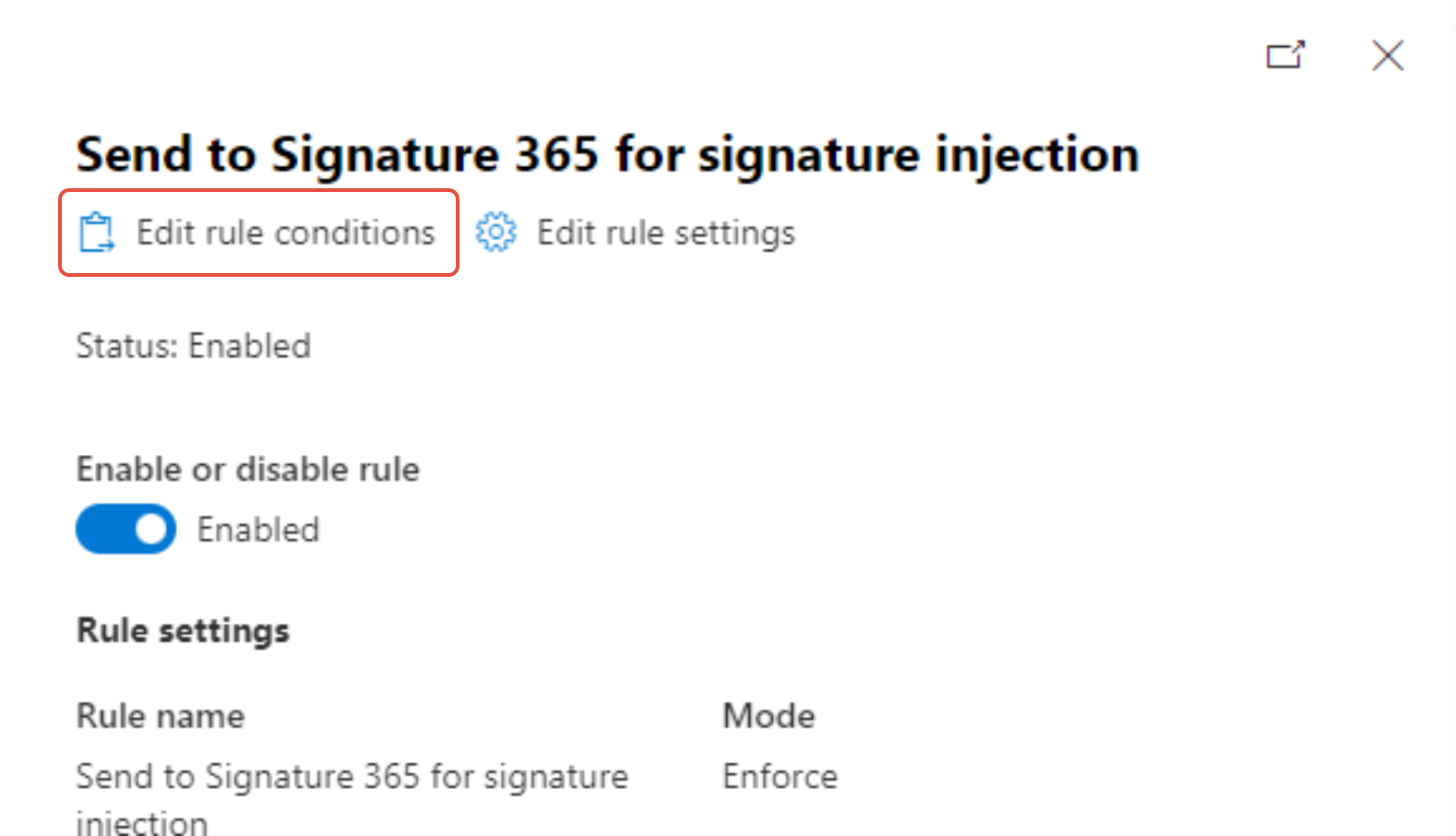
Select the Edit rule conditions option in the flyout.
Under the Conditions tab, click the edit button to update the The sender is a member of this group option, selecting the group you would like to use.
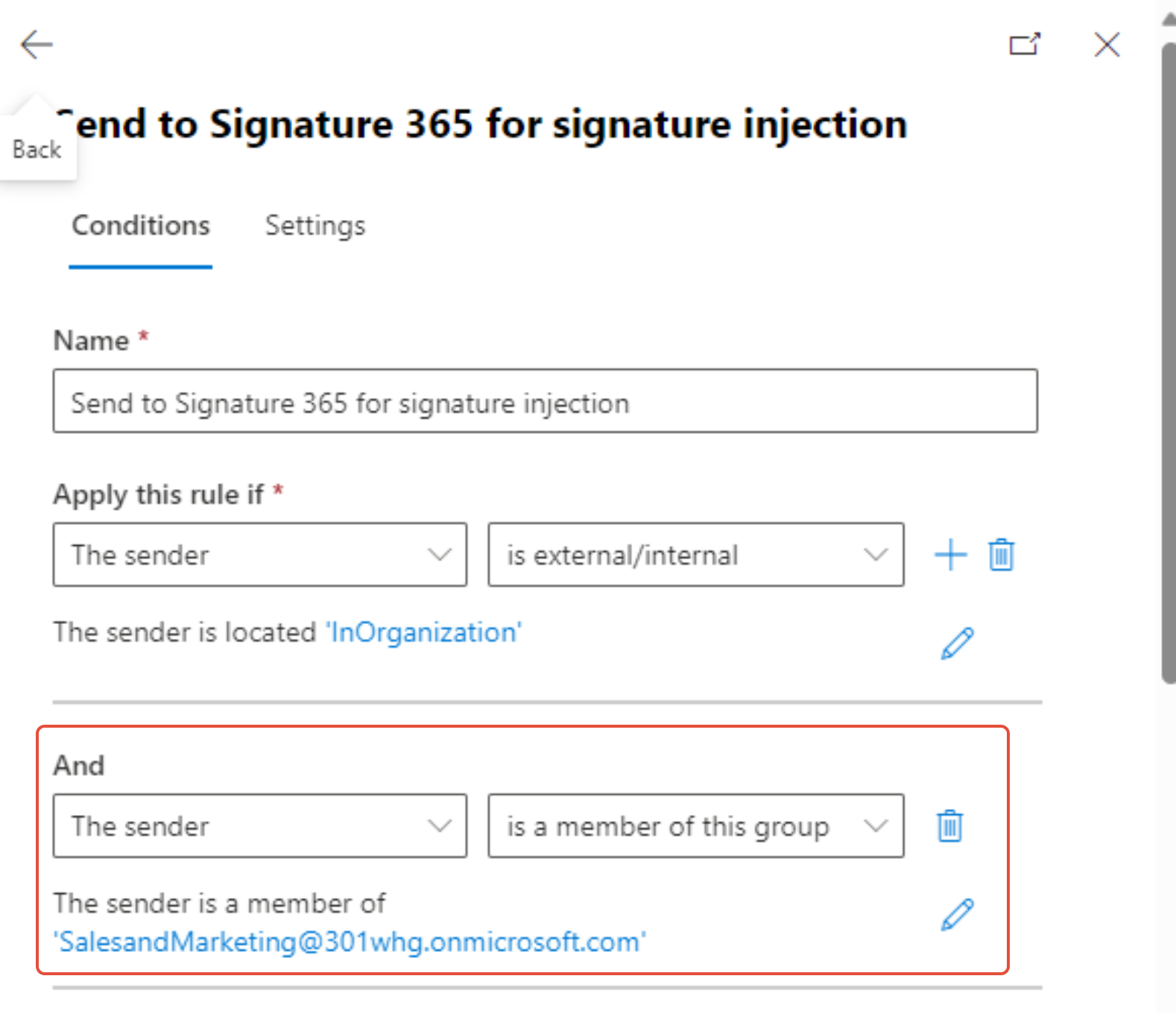
Deleting the The sender is a member of.... conditional statement will apply the rule to all users.
How Microsoft 365 server-side signatures work
Understand how Signature 365 routes Microsoft 365 email for server-side signatures, previews, and sent items updates.
How to use Signature 365 together with third-party security solutions
Configure mail flow so Signature 365 works with third-party email security services like Mimecast.