
Tasks, contacts and voting buttons are removed from internal emails sent using Signature 365 server-side signatures
If you use Signature 365 server-side signatures to send an email to a recipient on your domain and content such as tasks, contacts, and voting buttons is removed, this occurs because Outlook uses a proprietary Microsoft data format called TNEF (Transport Neutral Encapsulation Format) for Outlook-specific features. As Signature 365 uses an external connector to inject signatures into your emails, Microsoft 365 removes these features when the message leaves your tenant to prevent compatibility or display issues in other mail clients.
To resolve this, you can create a remote domain through the Exchange admin center or by using PowerShell, and set it to allow TNEF for this domain.
Use the Exchange admin center to configure TNEF for a remote domain
Logon to your Microsoft Tenant by navigating to https://admin.exchange.microsoft.com/#/remotedomains.
Click the + Add a remote domain button.
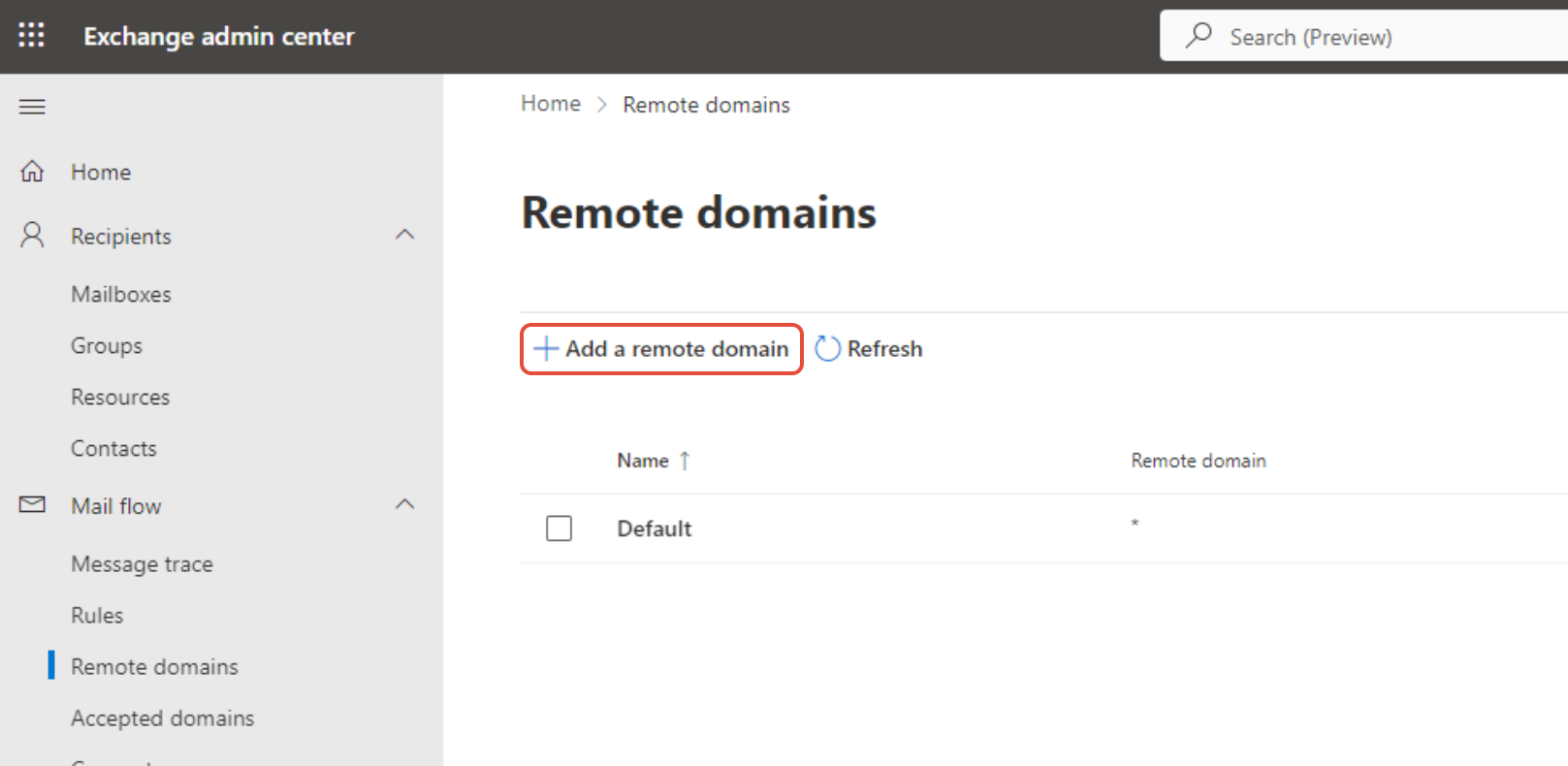
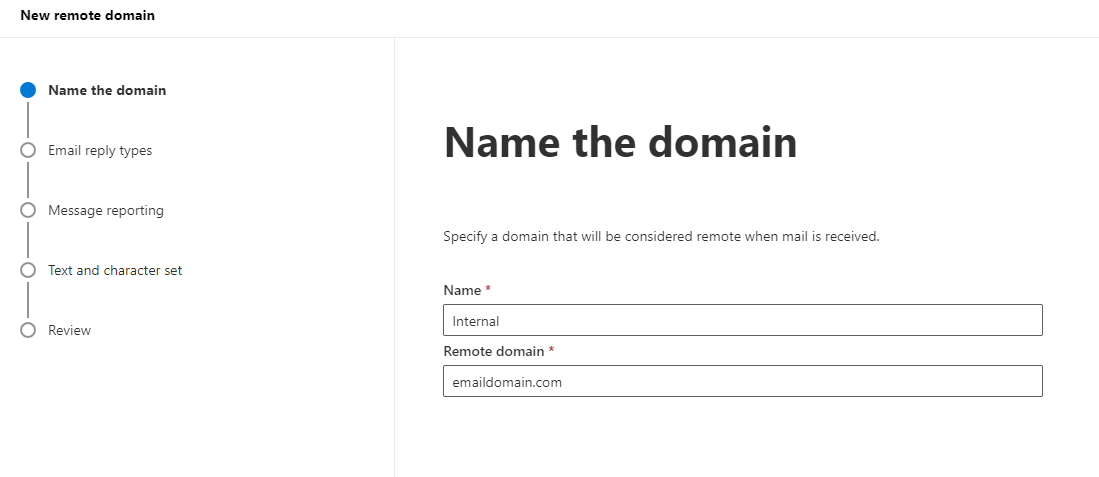
In the New remote domain window, name the new remote domain - we suggest "Internal" or similar. The remote domain will be your email domain name.
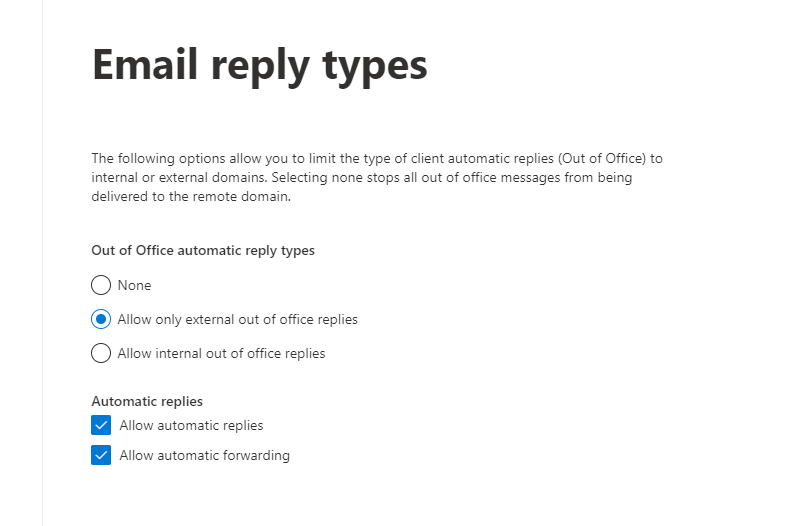
Leave the Email reply types as Allow only external and the Automatic replies settings as shown, and click Next.
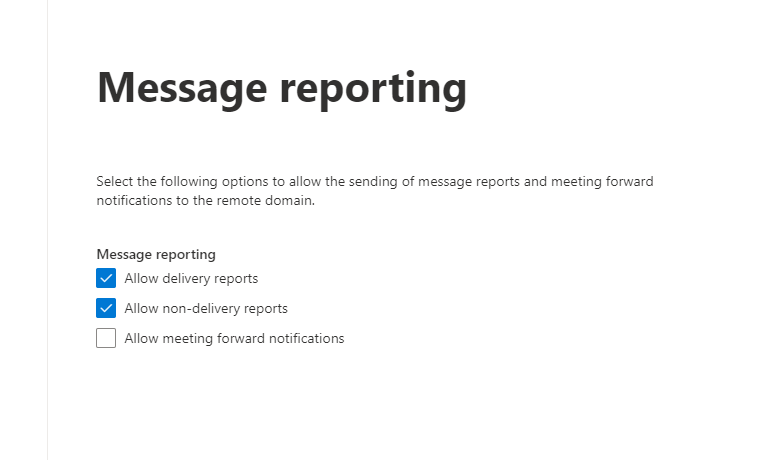
Leave the Message reporting settings as shown and click Next.
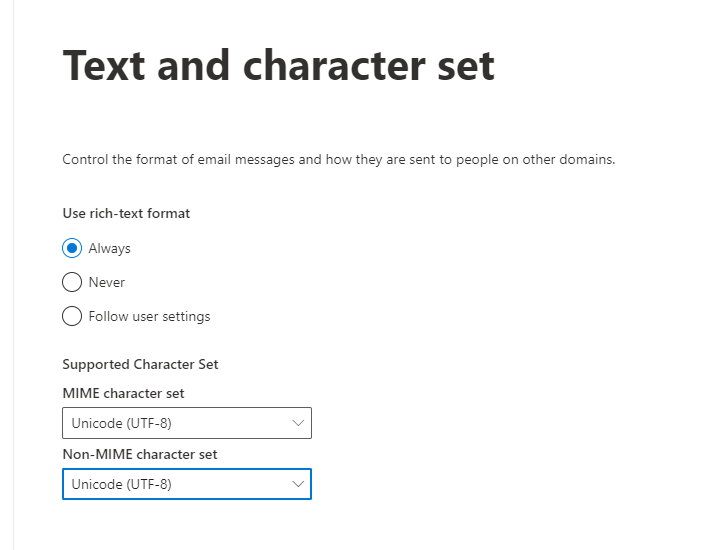
Set the Use rich-text format radio button to Always, the supported character set dropdowns to Unicode (UTF-8) and click Next.
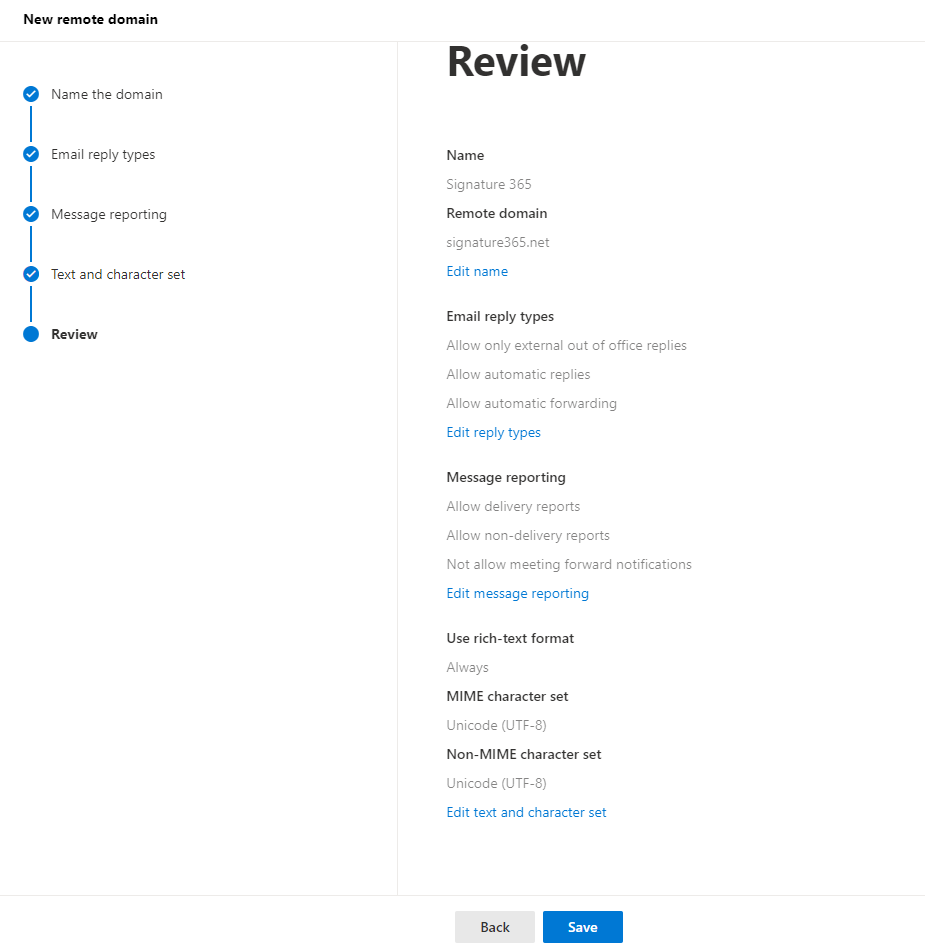
Review the settings and click Save.
If you are using additional domains that receive email, they will also need to be added as remote domains in the same manner.
Confirm that the setting has applied and is working by sending an email containing a Task / Contact or similar to an internal recipient.
Use Powershell to configure TNEF for a remote domain
Connect to Exchange powershell.
Import-Module ExchangeOnlineManagement
Connect-ExchangeOnline -UserPrincipalName {username}
Run the following commands to create the new Remote domain and enable TNEF.
New-RemoteDomain -DomainName "emaildomain.com" -Name "Internal"
Set-RemoteDomain -Identity "Internal" -TNEFenabled $true
Confirm that the setting has applied and is working by sending an email containing a Task / Contact or similar to an internal recipient.
Using Server-side injection to specify the location of an inserted signature
Use server-side markers to place inserted signatures correctly in email from external systems such as Salesforce.
How to trial Signature 365 when already using another signature service
Trial Signature 365 alongside another signature service without disrupting live mail flow.