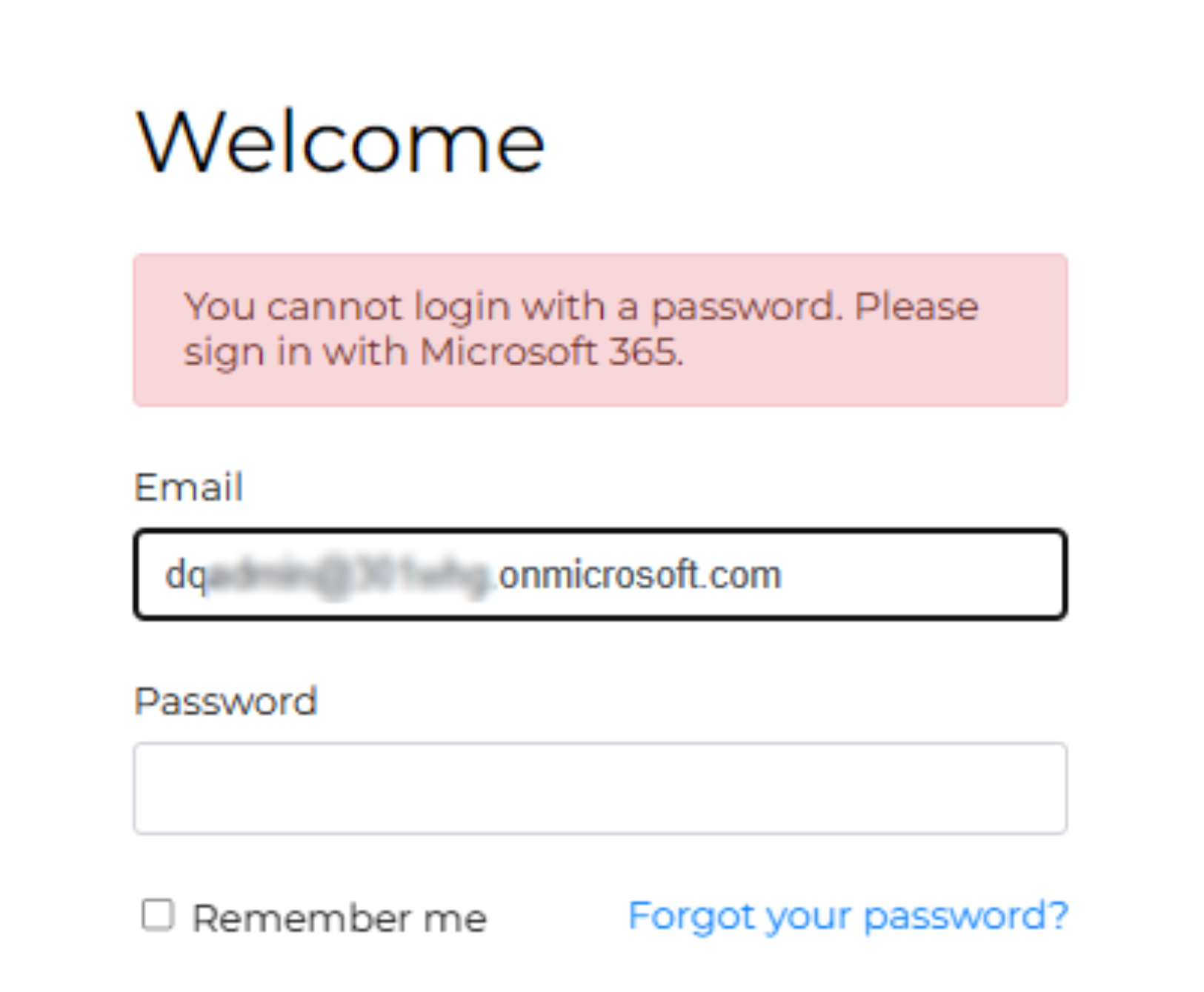
Enabling single sign-on (SSO) for Signature 365 management accounts
Enable single sign-on for Signature 365 management accounts from each user's profile settings.
Scenario
You wish to enable SSO for your accounts that manage the Signature 365 platform to take advantage of the additional security offered by this method.
Solution
This document details how to enable SSO login for any Signature 365 management account.
This cannot currently be enforced for your tenant, so all users must enable this feature manually.
- Log on to the Signature 365 Portal
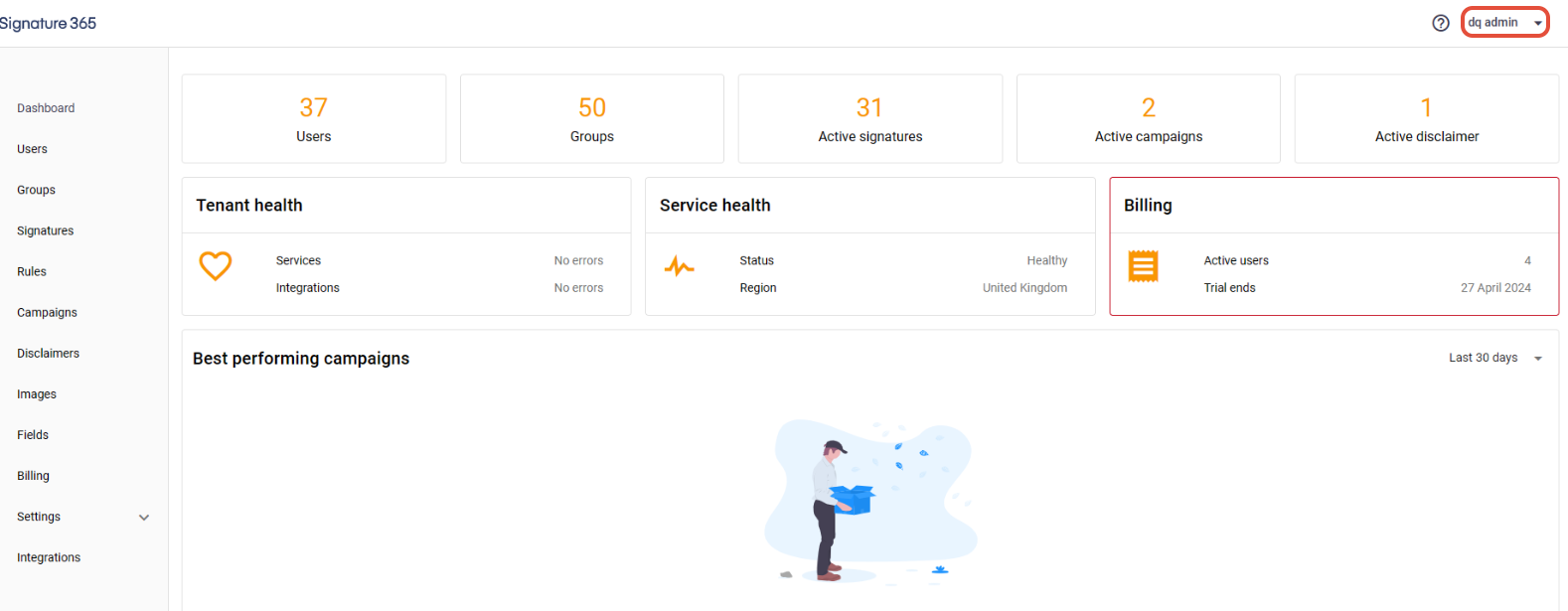
- Select the user dropdown from the top right of the page
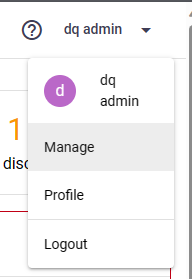
- Select the Manage option from the dropdown
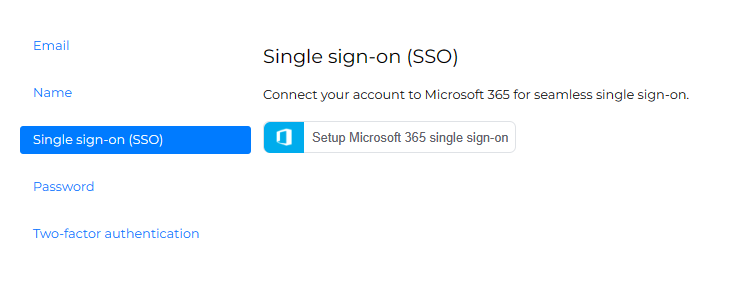
- Select the Single sign-on (SSO) option from the manage menu, and click the Setup Microsoft 365 single sign-on button
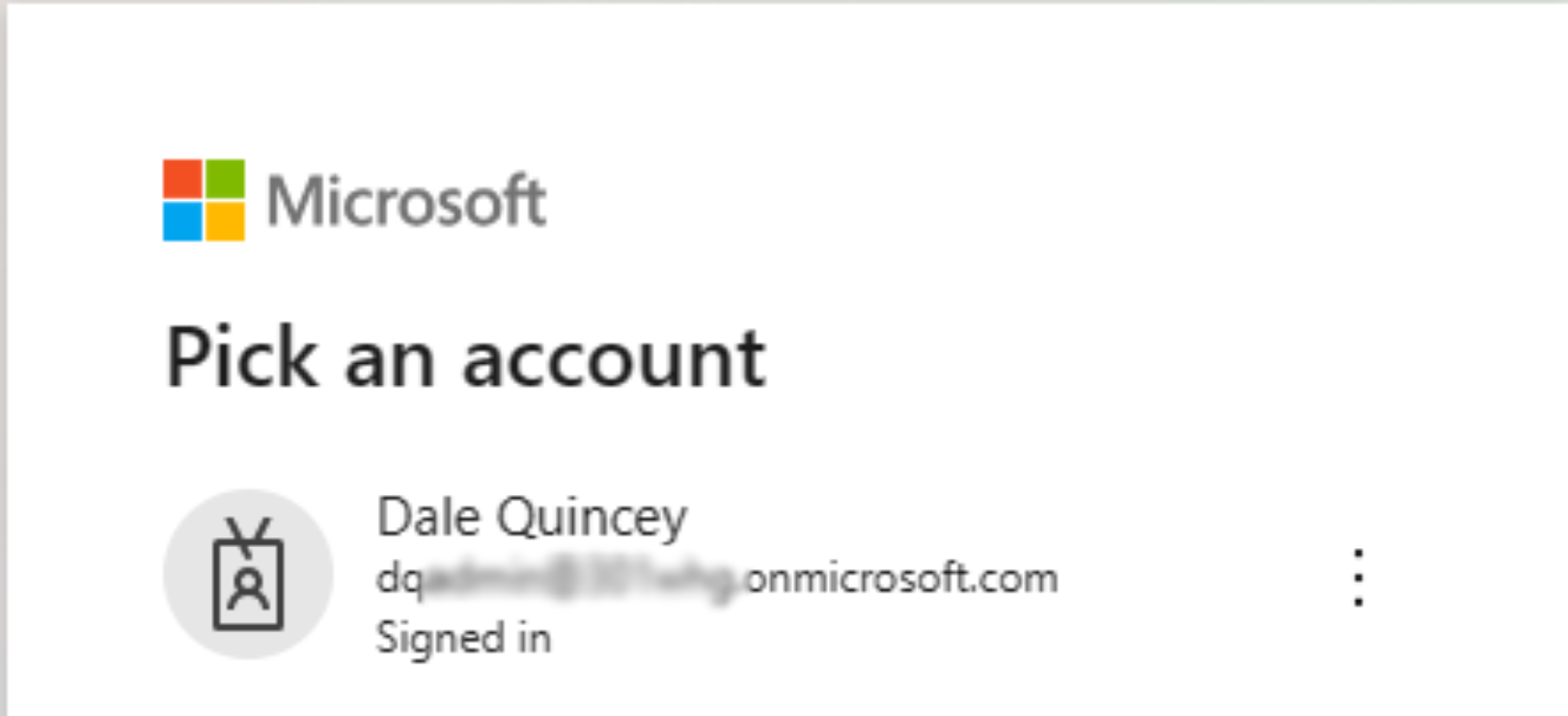
- You will be redirected to sign-in with Microsoft 365. You must log in with the Microsoft account that has the same email address as your Signature 365 account. The Microsoft account must be a member of the same Microsoft 365 tenant that the Signature 365 account is configured with
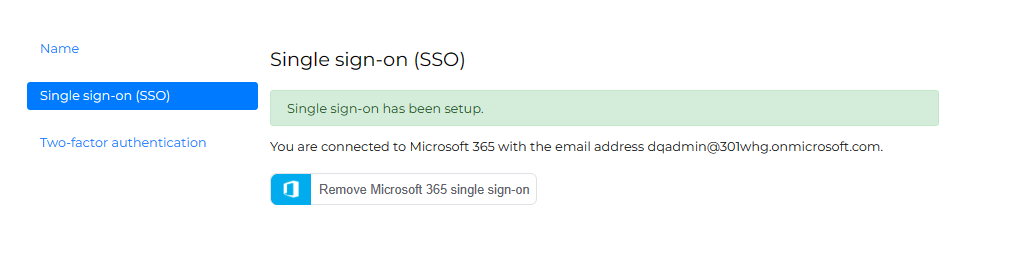
- Once sign-in has completed, you will be returned to the manage page, which will show this has been configured
- Sign out of Signature 365, then use the Sign in with Microsoft 365 button to sign in to Signature 365
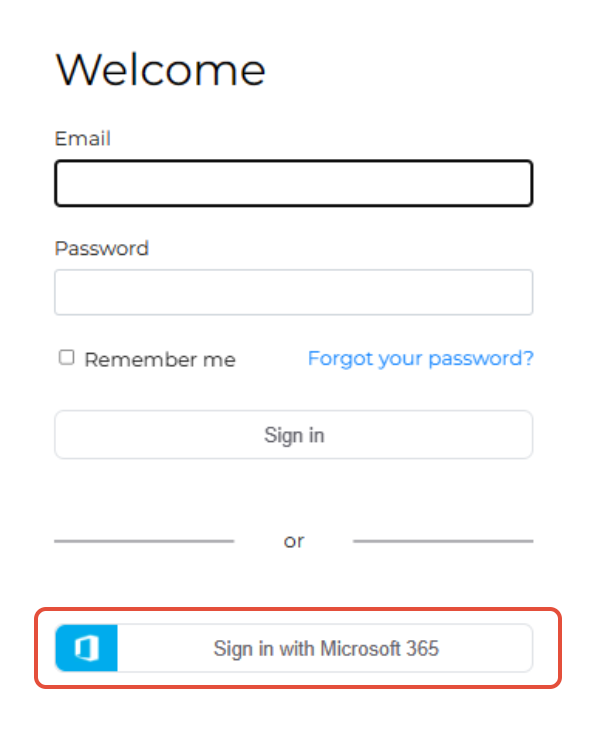
- Your account must now use SSO to sign in to the portal