
Using campaigns and disclaimers
Scenario
You wish to understand how to design and apply Campaigns and Disclaimers in Signature 365.
Solution
Campaigns are designed to be used in a scenario where you wish to apply information to your signatures (for example an information banner, or details on a promotional campaign) without affecting the base layout of your signatures themselves.
Disclaimers are designed to apply a default disclaimer to all outgoing emails, but can equally be configured in a similar manner to campaigns. The only thing to note is that disclaimers cannot utilise link or click tracking.
Campaigns and disclaimers can also be configured to apply for specific users or groups, specific Signature templates, internal or external recipients, to New and / or reply emails, or a combination of these options.
Campaigns and disclaimers can also be configured to apply for a scheduled time period.
Campaigns and disclaimers are always applied after the user's signature, the order of these sections cannot be changed, and the sections are applied in the order;
Signature
Campaign
Disclaimer
The template design for campaigns and disclaimers is identical to that of signatures. For details on template design, see Getting started with the template editor.
As noted above, campaigns and disclaimers can be applied in a more configurable manner than Signature templates.
Clicking the "Add+" button will present a similar page to signature template design, with the Name, Description, and visual editor displayed.
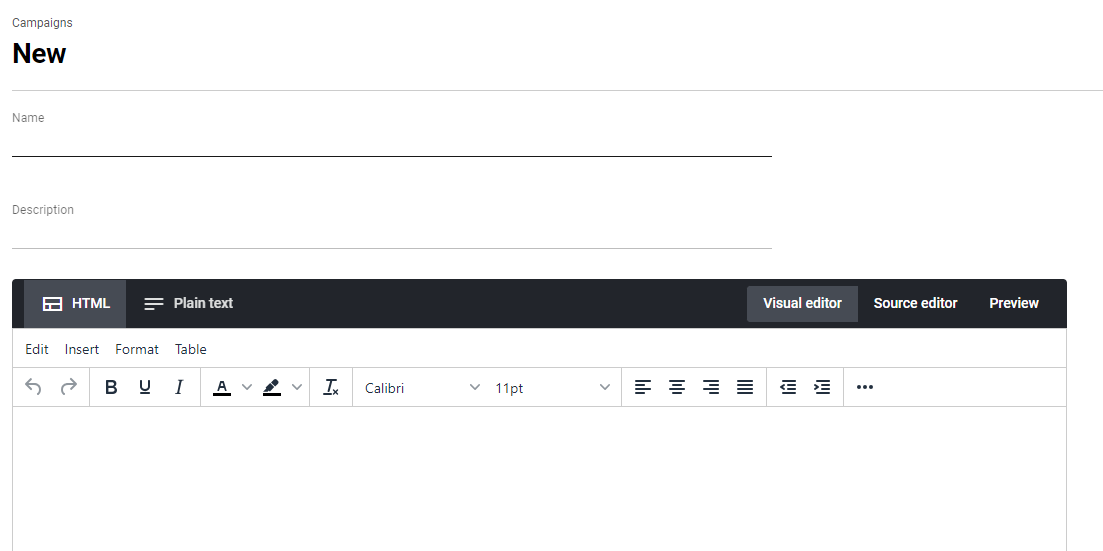
The designer and its features are covered in the article linked above.
Scrolling down the page, the Apply to options are available;
The upper section defines which users or groups this should apply to.
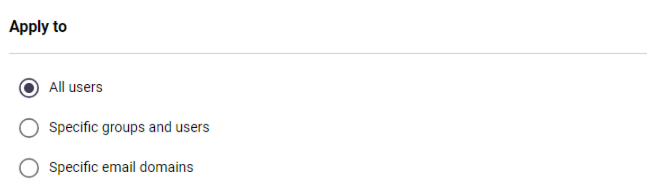
The lower section defines which signatures to apply to - for example, if an external marketing campaign should only be applied to a specific signature - and has the following options:
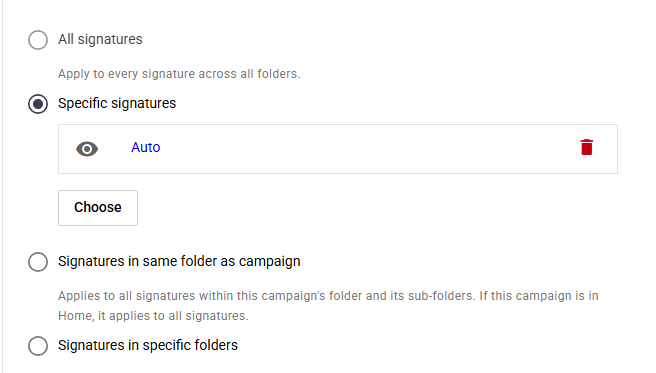
All Signatures can only be selected if the logged in user has permissions to the Home folder within Signature 365, and will display the error below if permissions are missing. This option overrides all folder permissions and apply to all Signatures.

Specific signatures, as implied, allows selection of one or multiple signatures that the logged-in user has access to. Selected signatures can be removed by selecting the red delete icon.
Signatures in same folder as campaign (disclaimer), applies this campaign/disclaimer to all signatures in the same folder
Signatures in specific folders allows the logged-in user to select a folder and applies the campaign/disclaimer to all signatures in that folder.
Scrolling down, the Schedule section allows you to specify when a campaign will be applied. If the Active from and Expires date are blank, the campaign will always be applied. You can specify both a date and specific time by selecting the Calendar or Clock icon.
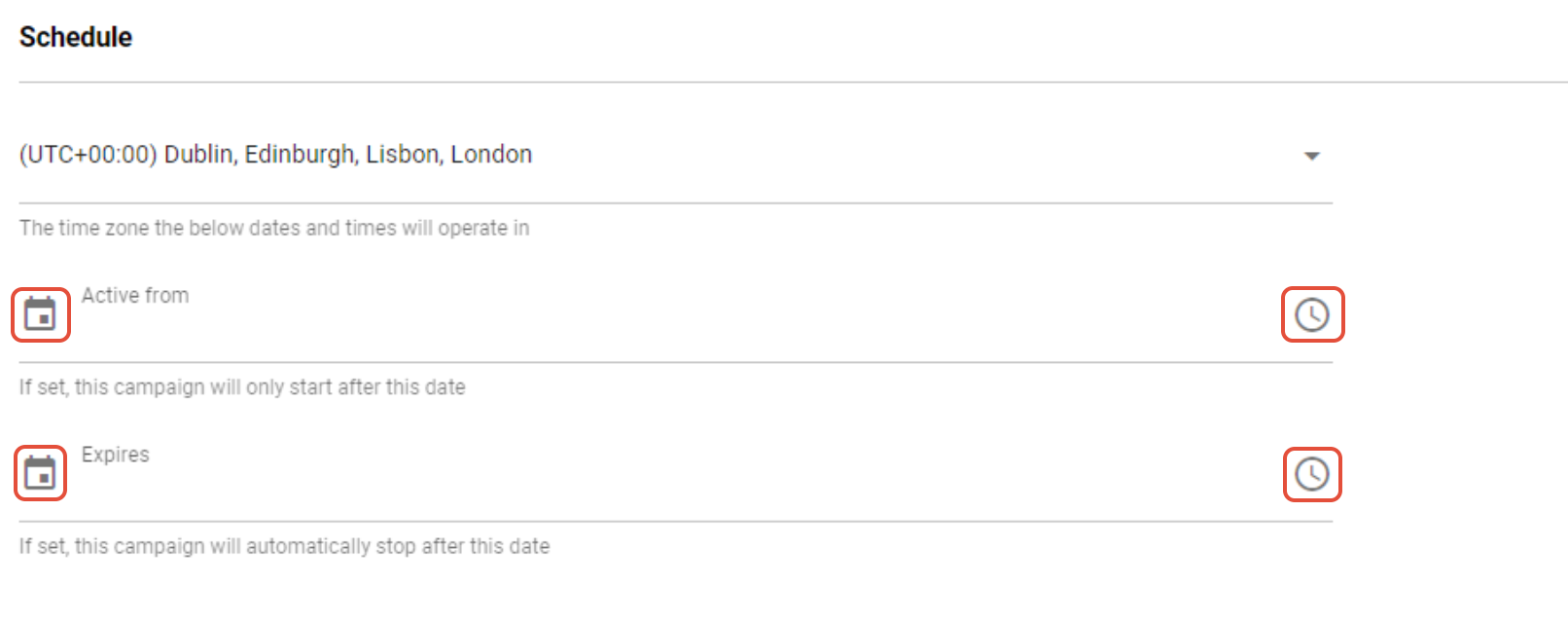
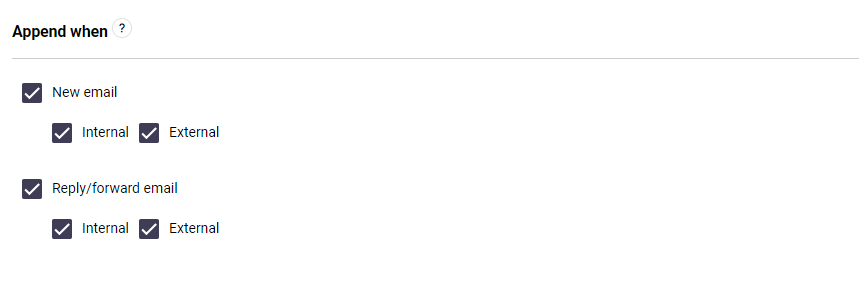
The Append When option controls when the campaign will be appended to a signature.
The Tracking section controls if recipient opens and clicks on the email should be tracked by Signature 365.
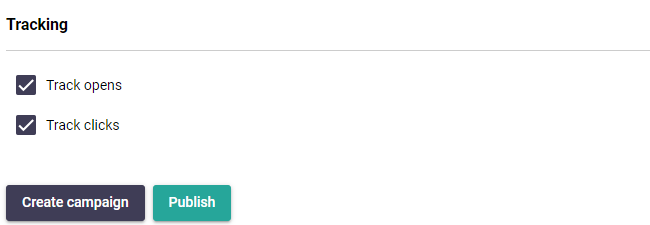
Clicking the Create campaign or Create disclaimer button will create this template as a draft, clicking Publish will create and publish, immediately applying to any emails sent that match the apply to rules.